

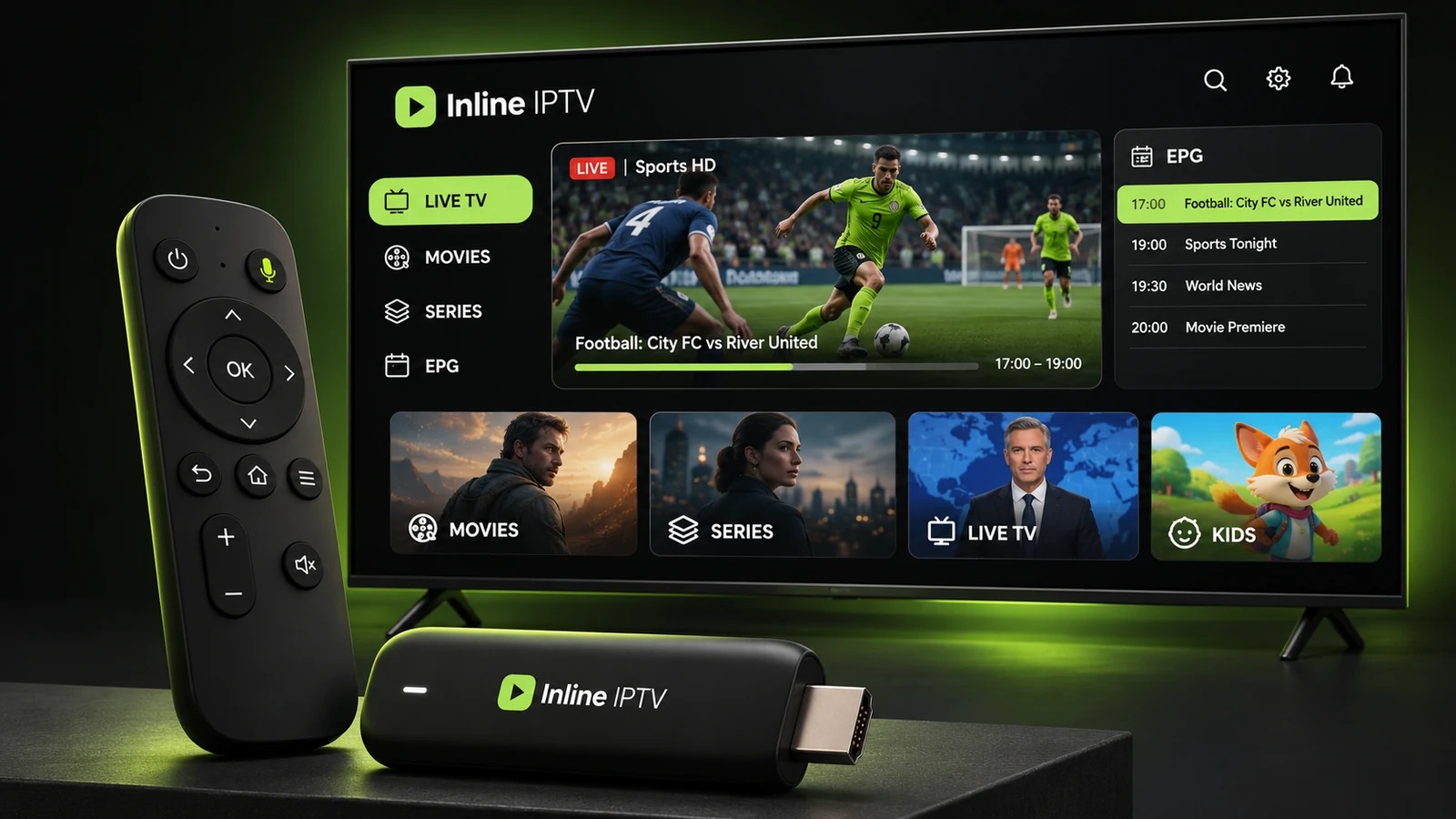
The Amazon Firestick is one of the easiest and most affordable ways to watch IPTV on any TV with an HDMI port, and setting up IPTV on Firestick takes only about ten minutes. In this guide we show you how to install an IPTV player on a Firestick or Fire TV device, add your Inline IPTV line and get the best picture quality.
Setting up another screen as well? Our IPTV setup guide covers Smart TVs, Android, Apple devices, computers and MAG boxes in one place.
What you need for IPTV on Firestick
- An Amazon Firestick, Fire TV Stick 4K or Fire TV Cube connected to the internet
- Your Inline IPTV login details (M3U link or Xtream Codes: server URL, username and password)
- A stable internet connection – at least 10–15 Mbps for HD and 25 Mbps for 4K
Step 1: Prepare your Firestick
Make sure your Firestick is updated: go to Settings → My Fire TV → About → Check for Updates. Many popular IPTV players are not in the Amazon Appstore, so you install them with the free Downloader app. To allow this, open Settings → My Fire TV → Developer options and turn on installing apps from unknown sources for Downloader. If Developer options is hidden, open About and press the Firestick name seven times to unlock it.
Step 2: Install an IPTV player app
Search the Amazon Appstore for Downloader and install it. Open Downloader and enter the official download address published by the player you want to use. Popular choices on Firestick are:
- TiviMate – a modern TV-style interface with an excellent program guide
- IPTV Smarters – simple and supports Xtream Codes logins
- IBO Player – easy to use and available on many devices
Only install apps from their official sources, and remember that some players charge a small one-time fee to unlock premium features.
Step 3: Add your Inline IPTV line
Open the player and choose to add a new playlist. You have two options:
Option A: Xtream Codes (recommended)
Select Xtream Codes API and enter the server URL, username and password from your welcome email. Xtream Codes usually loads channel logos, categories and the electronic program guide automatically.
Option B: M3U playlist
Select M3U playlist and paste the full M3U link from your email. If the player asks for an EPG URL, use the one we provide in your welcome email.
Step 4: Load the program guide and start watching
The first load can take a minute while the channel list and EPG are downloaded. After that, browse by category, open the guide to see what is on now and next, and mark your favourite channels for quick access.
Tips for the best picture on Firestick
- Use the Firestick power adapter, not a USB port on the TV, for stable performance.
- If you can, connect with an Ethernet adapter instead of Wi-Fi.
- Clear the player cache from time to time: Settings → Applications → Manage Installed Applications.
- Restart the Firestick once a week by unplugging it for 30 seconds.
Common problems and quick fixes
- Buffering – test your speed, move the router closer or switch to a lower quality stream.
- No program guide – refresh the EPG in the player settings or re-enter the EPG URL.
- Login error – check for typing mistakes and extra spaces in your username and password.
Still stuck? Contact our support team with your Firestick model and the player you use and we will guide you. New to Inline IPTV? Compare our IPTV plans or request a free 24-hour trial.
Why Watch IPTV on Firestick?
Watching IPTV on Firestick is popular for good reasons. The device is small, affordable and plugs straight into any TV with an HDMI port, so even an older TV becomes a modern streaming screen. The remote has voice control, the menus are simple, and most IPTV player apps run smoothly on recent models. If you want to learn more about the hardware itself, the Wikipedia article on Amazon Fire TV explains the different generations.
- Low cost – a Firestick costs far less than a new Smart TV.
- Portable – take it with you and plug it into a TV when you travel.
- Wide app choice – most popular IPTV players support Fire TV.
- 4K options – the Fire TV Stick 4K models support 4K streams where available.
Which Firestick Is Best for IPTV?
All current Fire TV devices can play IPTV, but newer models are faster and handle large channel lists and program guides more easily.
| Device | Best for |
|---|---|
| Fire TV Stick (HD) | HD TVs and simple setups |
| Fire TV Stick 4K | Most homes – 4K picture and good speed |
| Fire TV Stick 4K Max | Large channel lists, fast menus and Wi-Fi 6 |
| Fire TV Cube | The fastest option, with a built-in Ethernet port |
If you are buying a new device for IPTV on Firestick, a 4K model is the best balance of price and performance, even if your TV is HD today.
Choosing the Right Player for IPTV on Firestick
The player app shapes your whole experience. Here is what to consider when you choose one for IPTV on Firestick:
- Login support – make sure the app supports Xtream Codes, which loads channels, the on-demand library and the guide automatically.
- Program guide view – a TV-style guide makes it easy to browse what is on now and next. Our EPG guide explains how it works.
- Remote-friendly design – large buttons and clear menus are easier to use from the sofa.
- Updates – choose an app that is updated regularly.
- Cost – some apps are free, others charge a small one-time fee to their developer for premium features.
Whichever app you choose, your Inline IPTV login stays the same, so you can try several players and keep the one you like best.
Firestick IPTV Setup: Settings That Make a Difference
Turn off data monitoring
Fire TV has a data monitoring feature that can lower video quality to save data. Go to Settings → Preferences → Data Monitoring and turn it off if you want the best picture.
Check the display resolution
Open Settings → Display & Sounds → Display and make sure the resolution is set to automatic or to the highest resolution your TV supports.
Free up storage
IPTV players store channel logos and guide data. If your Firestick is almost full, uninstall apps you no longer use and clear the cache of large apps.
Keep the Firestick cool
Firesticks can slow down when they get too hot. Use the HDMI extender that comes in the box so the stick is not pressed against the back of the TV.
Improving Streaming Quality for IPTV on Firestick
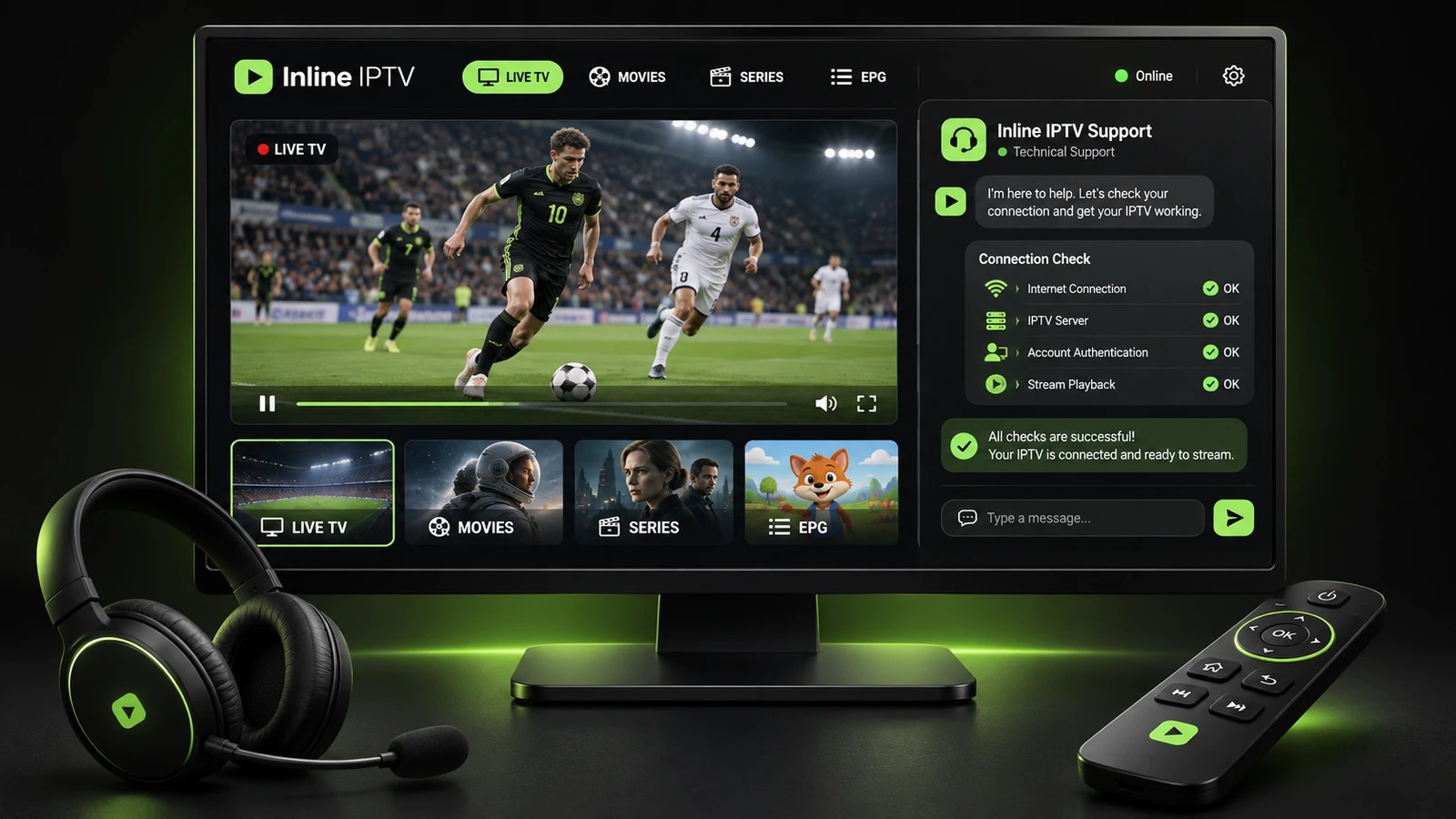
Most picture problems come from the connection between the Firestick and your router. Try these steps, in this order:
- Test your speed on the Firestick itself. Use a speed test app or a browser and visit Speedtest by Ookla. Aim for at least 10 Mbps for HD and 25 Mbps for 4K.
- Move the router or the Firestick. Walls, mirrors and other electronics weaken Wi-Fi. Even a small change in position can help.
- Use the 5 GHz Wi-Fi band if your router offers it – it is usually faster at short distances.
- Use Ethernet. An Ethernet adapter for Firestick, or the built-in port on Fire TV Cube, gives the most stable connection.
- Restart everything. Unplug the router and the Firestick for 30 seconds, then plug them back in.
Firestick or Smart TV App: Which Is Better for IPTV?
Many Smart TVs can run IPTV player apps directly, so do you still need a Firestick? It depends on your TV:
- Choose IPTV on Firestick if your TV is older, its app store has few IPTV players, or its menus are slow.
- Use the TV’s own app if your Samsung or LG TV is recent and supports a player you like – see our Samsung and LG guide.
- Use both if you have several TVs: a Firestick in one room and the TV app in another, within the number of devices in your plan.
A Firestick also makes it easy to move your setup to a new TV later, because the apps and login stay on the stick.
Using IPTV on Firestick Every Day
- Create favourites – add the channels you watch most to a favourites group for quick access.
- Use the guide – open the EPG to see what is on now and later, and switch channels directly from it.
- Use voice search – many apps accept text from the Fire TV remote’s voice button for faster searching.
- Set parental controls – most players let you lock categories with a PIN.
- Refresh your playlist – if channels look out of date, refresh the playlist in the app settings.
Advanced Fixes for IPTV on Firestick
The app crashes or closes
Go to Settings → Applications → Manage Installed Applications, choose the player and select Force Stop, then Clear Cache. If it still crashes, uninstall and reinstall the latest version from the official source. Crashes on IPTV on Firestick are usually caused by an outdated app or a full storage.
Channels load but some do not play
Try another channel in the same category. If only one channel is affected, it may be a temporary issue with that source – try again later. If many channels fail at once, restart the app and refresh your playlist, then contact support if the problem continues.
The guide shows the wrong time
Check the time zone in Settings → Preferences → Time Zone on your Firestick, then look for a time offset option in the player’s EPG settings.
The picture is fine on Wi-Fi in one room but not another
This points to Wi-Fi coverage. A mesh Wi-Fi system or a powerline adapter with Ethernet can bring a strong connection to the room where you watch IPTV on Firestick.
Sound but no picture
Change the video decoder in the player settings – many apps offer hardware, software or automatic options. Switching from one to another often fixes black screens.
Keeping IPTV on Firestick Secure
- Install player apps only from their official websites or the Amazon Appstore.
- Keep your login private and do not share it outside your household.
- Update your Firestick software regularly through Settings → My Fire TV → About.
- Turn off installing from unknown sources once your player is installed, if you do not need it.
These habits keep IPTV on Firestick stable and protect your device and your account.
More Questions About IPTV on Firestick
Can I use one login on several Firesticks?
Yes. Install the player on each Firestick and add the same login. Only the number of devices in your plan can stream at the same time. See our IPTV subscription plans for 1, 2 or 3 devices.
Is IPTV on Firestick legal?
Installing a player app and using a legitimate subscription for personal viewing is how the service is meant to be used. Follow the laws of your country and our terms and conditions.
Why does my Firestick say an app is from an unknown source?
Apps installed outside the Amazon Appstore show this message. Only install player apps from their official websites, and turn the unknown sources option off again after installing if you prefer.
Can I watch IPTV on Firestick while travelling?
Yes, as long as the hotel or holiday home has a good internet connection. Some hotel networks block streaming, so test it on arrival.
What if my Firestick is slow?
Clear the app cache, uninstall unused apps and restart the device. Older Firesticks may struggle with very large channel lists – in that case, hide categories you do not use in the player settings.
Start Watching IPTV on Firestick Today
You now have everything you need to set up IPTV on Firestick and enjoy a smooth picture. If you do not have a plan yet, request a free 24-hour trial to test it on your own Firestick, then choose the plan that fits your home. For quick answers to other questions, visit our IPTV FAQ.