

IPTV Setup Guide – Every Device and Every Player
This IPTV setup guide shows you how to add your Inline IPTV login to every popular player app and device: Firestick, Android TV, Samsung and LG Smart TVs, iPhone, iPad, Apple TV, Windows, Mac, MAG and Formuler. Pick your device below and follow the steps – most people are watching in under 10 minutes.
- Step-by-step for each device
- All popular player apps
- Free setup help
Choose Your Device
Jump straight to the instructions for the screen you want to watch on.
Your Login: Xtream Codes, M3U or Portal
After your order or free trial, we email your login in the format your app needs. Here is what each one means.
Xtream Codes (recommended)
Three details: server URL, username and password. The app loads live TV, movies, series and the program guide automatically.
Best for: Smarters, TiviMate, XCIPTV, TelevizoM3U playlist + EPG URL
One long playlist link for channels, plus an optional EPG link for the TV guide. Works in almost every app.
Best for: VLC, Kodi, GSE, Smart TV appsPortal (MAC address)
A portal URL linked to your box's MAC address. You send us the MAC and add the portal in the box settings.
Best for: MAG boxes, Formuler, STB emulatorsBest IPTV Player Apps Compared
Your Inline IPTV login works in any of these players. Pick one that runs on your device and suits your taste – you can switch at any time without changing your plan.
| Player app | Devices | Login type | Cost |
|---|---|---|---|
| IPTV Smarters Pro | Firestick, Android, iPhone, iPad, Apple TV, Windows, Mac | Xtream Codes, M3U | Free app |
| TiviMate | Firestick, Android TV, Google TV | Xtream Codes, M3U | Free, optional premium |
| IBO Player / IBO Pro | Samsung, LG, Android, Firestick, iOS | M3U or Xtream via device ID | Free trial, then activation |
| Televizo | Firestick, Android TV, Android phones | Xtream Codes, M3U | Free, optional premium |
| XCIPTV | Firestick, Android TV, Android phones | Xtream Codes, M3U | Free app |
| Smart IPTV (SIPTV) | Samsung, LG, Android TV | M3U via MAC address | One-time activation |
| SET IPTV / Net IPTV | Samsung, LG | M3U via MAC address | One-time activation |
| Flix IPTV / Duplex Play | Samsung, LG, Android | M3U via MAC address | Trial, then activation |
| GSE Smart IPTV | iPhone, iPad, Apple TV, Android | Xtream Codes, M3U | Free, optional pro |
| iPlayTV | Apple TV | M3U + EPG | Paid app |
| VLC media player | Windows, Mac, Linux, phones | M3U only | Free |
| Kodi (PVR IPTV Simple Client) | Windows, Mac, Android, Firestick | M3U + EPG URL | Free |
| MyTVOnline | Formuler boxes | Portal or Xtream Codes | Built into the box |
| MAG built-in portal | MAG boxes | Portal via MAC address | Built into the box |
Prices and features of third-party apps are set by their developers and can change. Activation fees are paid to the app developer, not to Inline IPTV. Always install apps from your device's official app store or the developer's official website.
How to Use This IPTV Setup Guide
This IPTV setup guide is written for beginners and experienced users alike. You do not need technical knowledge – just your login email from Inline IPTV, your device and a few minutes. Follow it in this order for the smoothest result:
- Find your login email. After your order or free trial, we email your Xtream Codes details, an M3U link and an EPG link. Keep it open on your phone.
- Choose your device section in this IPTV setup guide and install one of the recommended player apps.
- Add your login using the Xtream Codes or M3U instructions further down this page.
- Apply the best settings from the checklist so the picture is stable and the guide stays up to date.
- Use the troubleshooting section if anything does not work, or message us for help.
We update this IPTV setup guide whenever popular apps or device menus change. If a step looks different on your screen, the option has usually just moved to a nearby menu – and our support team can point you to it in a minute. Bookmark this page so you can come back whenever you add a new TV, stick or phone to your home.
What You Need Before You Start
Every step in this IPTV setup guide assumes you have four simple things ready. Checking them first saves time and avoids most setup problems.
- An active Inline IPTV login – from a paid plan or a free 24-hour trial. If you do not have one yet, see our IPTV subscription plans.
- A stable internet connection – about 10 Mbps for HD and 25 Mbps for 4K on the device you will watch on.
- A supported device – a Smart TV, Firestick, Android TV box, Apple device, computer, MAG or Formuler box.
- Access to the app store on that device, signed in with your Amazon, Google, Apple, Samsung or LG account.
With these ready, any section of this IPTV setup guide takes only a few minutes. If you are setting up several devices, start with your phone: it is the quickest way to confirm that your login works before you move on to the TV. Then repeat the same steps on each screen in your home, keeping within the number of devices in your plan.
IPTV Setup Guide for Firestick and Fire TV
Amazon Fire TV devices are the most popular way to watch IPTV. Some players are in the Amazon Appstore; others are installed from the developer's official website using the free Downloader app. For the full walkthrough with screenshots-style detail, read our Firestick IPTV setup guide.
- Update your Fire TV in Settings → My Fire TV → About → Check for updates.
- Install a player. Search the Appstore for your player. If it is not listed, install Downloader, enable it under Settings → My Fire TV → Developer options → Install unknown apps, and enter the player's official download address.
- Open the player and choose Login with Xtream Codes API (or similar).
- Enter your details: any name, then the username, password and server URL from our email.
- Wait for the download of channels, movies, series and the EPG, then start watching.
Recommended players: TiviMate, IPTV Smarters Pro, XCIPTV and Televizo. Turn off the Fire TV Data Monitoring feature for the best picture.
IPTV Setup Guide for Android TV, Google TV and Android Boxes
Android TV devices – including Google TV, NVIDIA Shield, Xiaomi Mi Box and most Android boxes – support nearly every IPTV player in the Google Play Store.
- Open the Google Play Store on your TV and search for TiviMate, IPTV Smarters Pro or Televizo.
- Install and open the app.
- Add a playlist and choose Xtream Codes.
- Enter the server URL, username and password from our email and confirm.
- Let the app load the channel list and guide. In TiviMate you can then hide groups you do not watch.
Older Android boxes with limited memory run more smoothly if you hide unused channel categories and reduce the number of guide days loaded.
IPTV Setup Guide for Samsung and LG Smart TVs
Samsung TVs (Tizen) and LG TVs (webOS) use player apps from their own app stores. Most of these apps show a device ID or MAC address on screen, and you add your playlist on the developer's website. Our Samsung and LG IPTV guide covers each step in detail.
- Install a player from the Samsung Apps or LG Content Store – for example IBO Player, Smart IPTV, SET IPTV, Net IPTV, Flix IPTV or Duplex Play.
- Open the app and write down the MAC address or device ID (and device key, if shown).
- On your phone or computer, open the app developer's official website and go to its playlist upload page.
- Enter the MAC/device ID and paste your M3U link (or Xtream details, if the app supports them).
- Restart the app on your TV. Your channels and guide appear.
Many TV apps offer a free trial and then ask for a one-time activation fee paid to the app developer. If the app you want is not in your TV's store, your model may be too old – a Firestick is an easy alternative.
IPTV Setup Guide for iPhone, iPad and Apple TV
Apple devices use players from the App Store. IPTV Smarters, GSE Smart IPTV and iPlayTV are popular choices, and many support Xtream Codes for automatic setup.
- Install a player from the App Store on your iPhone, iPad or Apple TV.
- Open the app and choose to add a new playlist or user.
- Select Xtream Codes and enter the server URL, username and password. If the app only supports M3U, paste your playlist link and add the EPG link in the guide settings.
- Save and wait for your content to load.
On Apple TV, a wired Ethernet connection gives the most stable 4K playback.
IPTV Setup Guide for Windows and Mac
On a computer you can use IPTV Smarters for desktop, VLC media player or Kodi.
VLC media player (quick test)
- Install VLC from the official VideoLAN website.
- Open VLC and choose Media → Open Network Stream (on Mac: File → Open Network).
- Paste your M3U link and press Play. Open the playlist view to switch channels.
VLC is great for a quick test but has no full TV guide. For daily watching, a dedicated IPTV player is more comfortable.
Kodi with PVR IPTV Simple Client
- Install Kodi from the official website.
- Go to Add-ons → Install from repository → PVR clients → PVR IPTV Simple Client and install it.
- Open the add-on settings, paste your M3U link under M3U playlist URL and your EPG link under XMLTV URL.
- Restart Kodi. Your channels appear under TV with a full guide.
IPTV Setup Guide for MAG and Formuler Boxes
MAG boxes
- Send us the MAC address printed on the label under your MAG box (it starts with 00:1A:79).
- We activate your portal and email you the portal URL.
- On the box, open Settings → System settings → Servers → Portals.
- Enter a portal name and paste the portal URL, then save and restart the box.
Formuler boxes (MyTVOnline)
- Open MyTVOnline and choose Add portal.
- Enter the portal URL we send you, or choose the Xtream Codes option and enter your username, password and server.
- Save and connect. The box loads channels and the guide automatically.
IPTV Setup on Android Phones and Tablets
Install IPTV Smarters Pro, XCIPTV or Televizo from the Google Play Store, choose Xtream Codes, enter your details and you are ready. Phones are perfect for testing your login before you set up the TV, and for watching on the go within the number of devices in your plan.
How to Add an Xtream Codes Login (Any App)
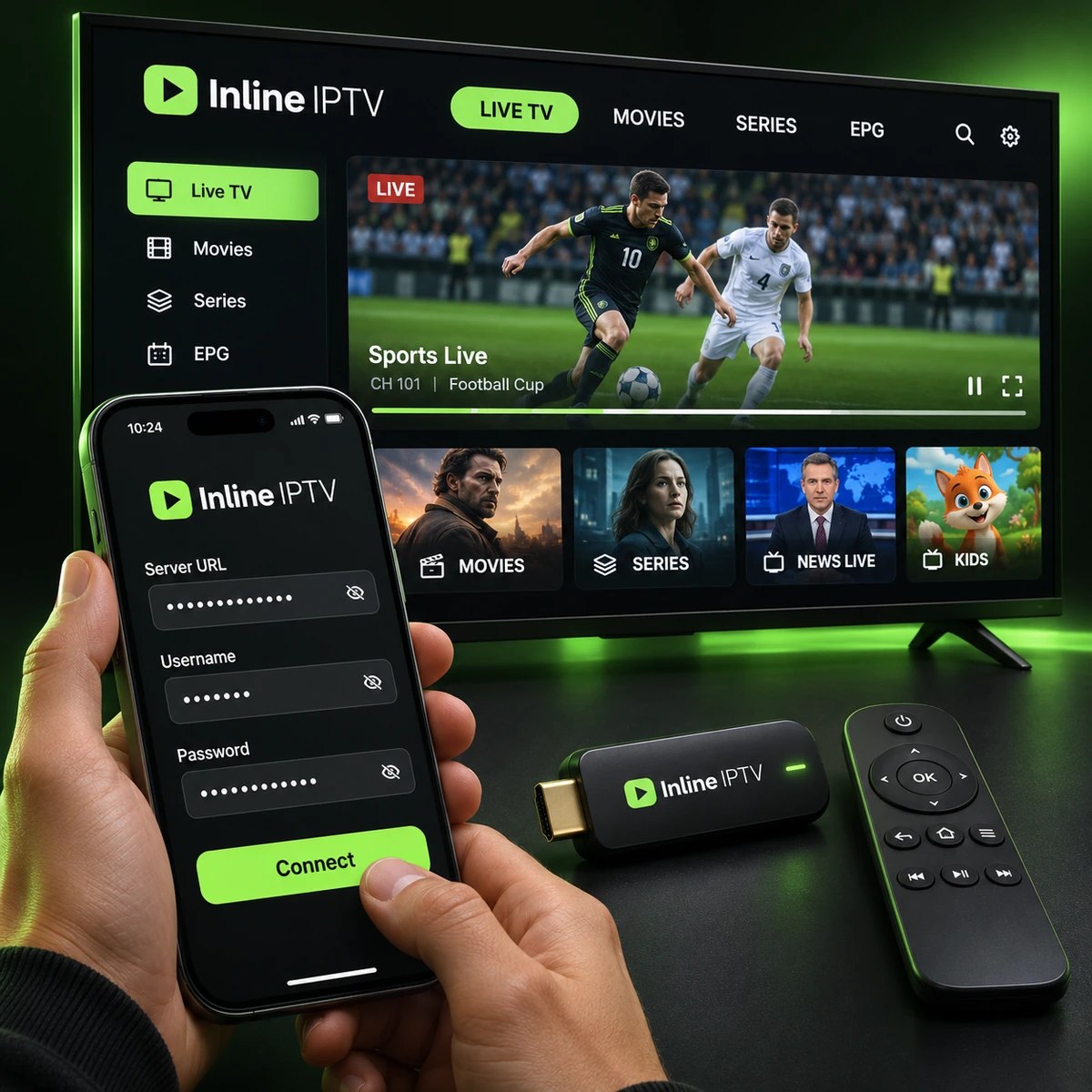
Xtream Codes is the easiest login type because the app downloads everything for you. In any player, look for Add user, Add playlist or Login with Xtream Codes API, then fill in:
- Name – anything you like, for example "Inline IPTV".
- Username – exactly as in our email.
- Password – exactly as in our email.
- Server URL – including
http://and the port number if one is shown.
Type carefully: one extra space or a missing port number is the most common reason a login does not work.
How to Add an M3U Playlist and EPG URL
An M3U playlist is a single link that contains your channel list. Paste it into your app's Add playlist → M3U URL field. To get the TV guide, add the separate EPG (XMLTV) URL from our email in the app's guide settings. Learn more in our EPG guide.
Best Settings After Your IPTV Setup
- Use Ethernet where possible, or the 5 GHz Wi-Fi band close to the router.
- Set the decoder to Hardware in the player settings; switch to Software if you see a black screen.
- Refresh the playlist and EPG once a day, or enable automatic updates.
- Create favourites so your most-watched channels are one click away.
- Hide unused groups to make large lists faster on older devices.
- Check your speed with Speedtest by Ookla: about 10 Mbps for HD and 25 Mbps for 4K.
IPTV Setup Troubleshooting
"Invalid login" or "Authorization failed"
Check the username, password and server URL for typing mistakes and extra spaces. Make sure the server URL includes http:// and the port. If your plan has just been renewed, restart the app.
Channels buffer or freeze
Restart the router and device, use Ethernet, close other downloads on your network and test your speed. Try the HD version of a channel if 4K stutters.
The TV guide is empty or shifted
Refresh the EPG in the app settings and check the date, time and time zone on your device. If the guide is shifted, use the app's EPG time offset setting.
"Maximum connections reached"
All the devices in your plan are already streaming. Stop playback on another device, wait one minute and try again, or upgrade to more devices.
The app is missing from my TV's store
Some apps are only available on newer TV models or in certain countries. Try another player from the table above, or use a Firestick or Android TV box.
Still stuck? Message us on WhatsApp or Telegram with your device, app and a screenshot, and we will walk you through it.
IPTV Setup FAQ
Quick answers to the questions we hear most during setup.
Which IPTV player is best?
On Firestick and Android TV, TiviMate and IPTV Smarters are the most popular. On Samsung and LG TVs, IBO Player and Smart IPTV are common choices. On Apple devices, try IPTV Smarters or GSE Smart IPTV. The best app is the one that runs smoothly on your device and feels easy to use.
Should I use Xtream Codes or M3U?
Use Xtream Codes whenever your app supports it. It loads channels, movies, series and the guide automatically. Use M3U for apps that do not support Xtream Codes, and add the EPG URL for the guide.
How long does IPTV setup take?
Usually 5 to 10 minutes. Apps that link through a website using a MAC address may take a few minutes more.
Can I use my login on several devices?
Yes. Install the app on as many devices as you like. Only the number of devices in your plan can stream at the same time.
Do I have to pay for the player app?
Many apps are free. Some, especially Smart TV apps, ask for a one-time activation fee that you pay directly to the app developer.
Can you help me set up?
Yes. Message us on WhatsApp, Telegram or through our contact page with your device and app name, and we send you the exact steps.