

Watching IPTV on Samsung and LG Smart TVs is easy: most modern models can play IPTV directly, so you do not need a separate streaming box. This guide explains which apps to use on Samsung (Tizen) and LG (webOS) TVs and how to add your Inline IPTV line.
Watching on more than one screen? Our IPTV setup guide covers Firestick, Android, Apple devices, computers and MAG boxes too.
Check that your TV is supported
Samsung Smart TVs from around 2017 onwards run Tizen, and LG Smart TVs from around 2016 onwards run webOS. Both have app stores with IPTV players. Update your TV software first: on Samsung go to Settings → Support → Software Update, on LG go to Settings → General → About This TV.
Choose an IPTV player app
Open the Samsung Apps store or the LG Content Store and search for a player. Popular options include:
- IBO Player – available on Samsung and LG, simple setup with a device ID and key
- Smart STB or similar portal-style apps
- Other players listed in your TV app store that support M3U or Xtream Codes
Many TV players show a device ID / MAC address and a device key on their first screen. You use these to link your playlist on the player’s official website. Some players offer a free trial and then ask for a one-time activation fee paid to the app developer.
Add your Inline IPTV line
- Install and open the player app on your TV and note the device ID and key shown on screen.
- On your phone or computer, go to the player’s official website and open the playlist or device page.
- Enter the device ID and key, then add your Inline IPTV M3U link or Xtream Codes details from your welcome email.
- Save, then restart the app on your TV. Your channels, categories and program guide will load.
Get the best experience on a Smart TV
- Connect the TV with an Ethernet cable if possible – it is more stable than Wi-Fi.
- Use the TV’s game or standard picture mode to reduce lag on live sports.
- Turn off energy-saving features that can slow down apps.
- Keep the player app and TV firmware up to date.
Troubleshooting
- App not in the store – your TV may be too old or region-locked; a Firestick or Android TV box is an easy alternative.
- Playlist will not load – double-check the device ID and key, and that the M3U link was pasted completely.
- Picture freezes – restart the TV and router, and test the internet speed on the TV.
Want help choosing the right app for your TV model? Contact us and we will walk you through it. See our IPTV subscription plans for 1, 2 or 3 devices.
Why Watch IPTV on Samsung and LG TVs Directly?
Watching IPTV on Samsung or LG TVs without an extra box keeps your setup simple: one remote, no extra cables and no extra power socket. Samsung TVs run the Tizen operating system and LG TVs run webOS. Both have app stores with IPTV players that support M3U playlists or Xtream Codes.
- No extra hardware – use the TV you already have.
- One remote – switch between live TV, apps and inputs with the TV remote.
- Good picture – modern Samsung and LG TVs handle HD and 4K streams well.
- Quick start – most people finish the setup of IPTV on Samsung or LG in under fifteen minutes.
Quick Checklist Before You Start
- Your TV is connected to the internet and its software is up to date.
- You have your Inline IPTV login email open on your phone.
- You know your TV brand and model year (look in the TV’s About menu).
- Your internet speed is at least 10 Mbps for HD or 25 Mbps for 4K.
- You have about fifteen minutes to install the app and add your login.
With this ready, setting up IPTV on Samsung or LG is quick and easy, and you can follow the steps below without stopping.
IPTV on Samsung TVs: Step-by-Step
- Update the TV. Go to Settings → Support → Software Update and install any update.
- Open the app store. Press the Home button and open Apps.
- Search for a player. Type the name of a player that supports M3U or Xtream Codes and install it.
- Open the player. Note the device ID (sometimes called MAC address) and key if the app shows them.
- Add your login. Either type your Xtream Codes details in the app, or go to the player’s official website on your phone and add your M3U link to your device ID.
- Restart the app. Your channels, on-demand library and program guide will load.
That is all you need to start watching IPTV on Samsung TVs. If the app you want is not listed, your TV model may be too old for it – try another player or use a streaming stick.
IPTV on LG TVs: Step-by-Step
- Update the TV. Go to Settings → General → About This TV and check for updates.
- Open the LG Content Store from the Home menu.
- Install a player that supports M3U or Xtream Codes.
- Open the app and note the device ID and key, if shown.
- Add your login in the app or on the player’s website.
- Restart the app and wait for the playlist and guide to load.
Choosing an App for IPTV on Samsung and LG
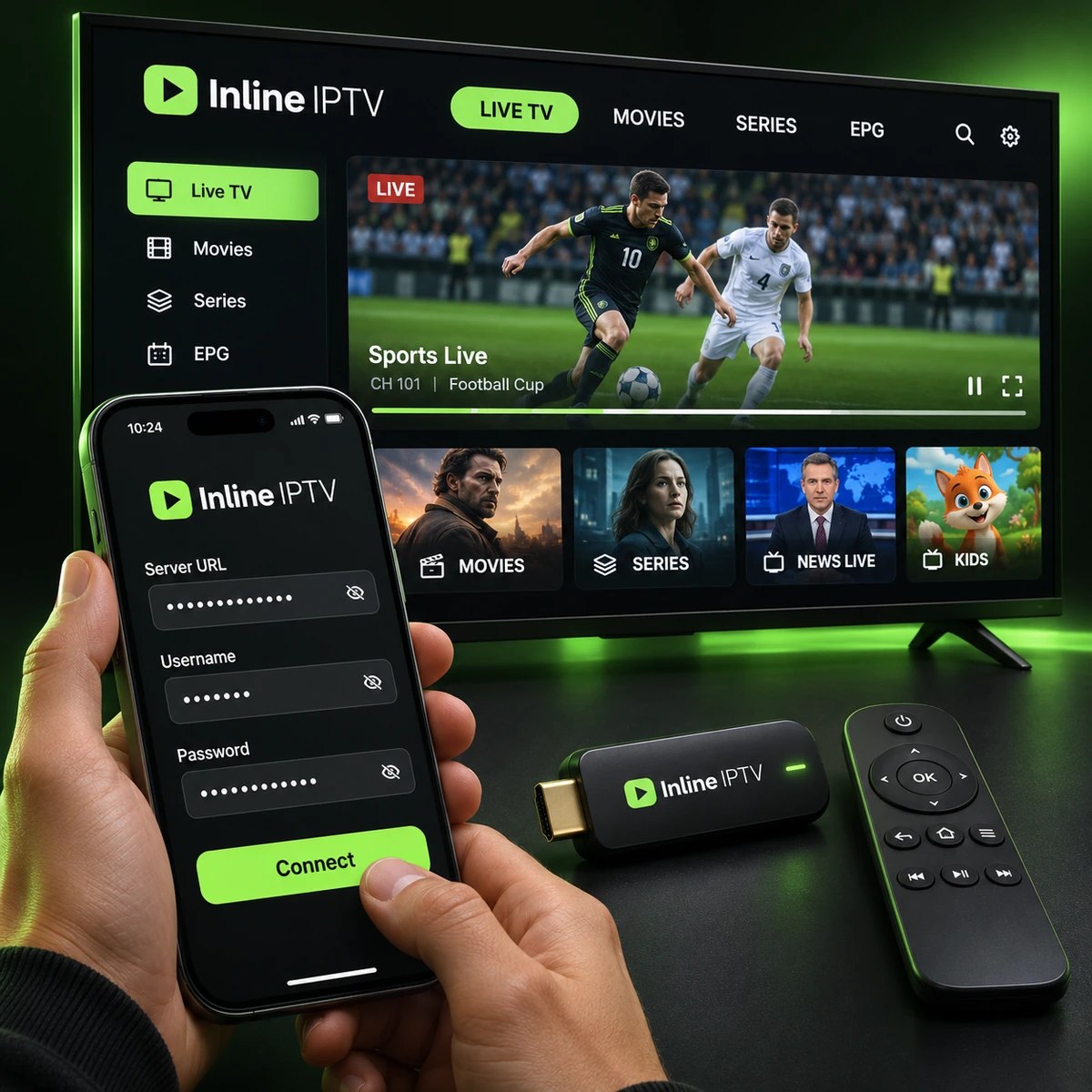
Smart TV apps differ in how you add your login and in how the guide looks. When you choose an app for IPTV on Samsung or LG, check:
- How the login is added – some apps let you type Xtream Codes on the TV; others link your playlist through their website using a device ID.
- Activation fee – many TV players offer a free trial and then ask for a small one-time fee paid to the app developer.
- Guide support – a good EPG view makes browsing much easier. Read our EPG guide to learn more.
- Updates and support – choose an app that is still updated for your TV model.
Best Settings for IPTV on Samsung and LG TVs
Picture mode
Choose the Standard or Movie picture mode for natural colours. Vivid modes can look too bright for long viewing.
Motion settings
Features such as Auto Motion Plus (Samsung) or TruMotion (LG) can make sport look smoother, but some people find they make films look unnatural. Try both and keep the one you prefer.
Network connection
Use an Ethernet cable if your TV is near the router. Many TVs have slower Wi-Fi chips than phones or streaming sticks, so a cable often makes a big difference for IPTV on Samsung and LG TVs.
Instant On and quick start
Quick start features keep the TV partly awake so apps open faster. If an app behaves strangely, fully restart the TV by unplugging it for a minute.
Fixing Common Problems With IPTV on Samsung and LG
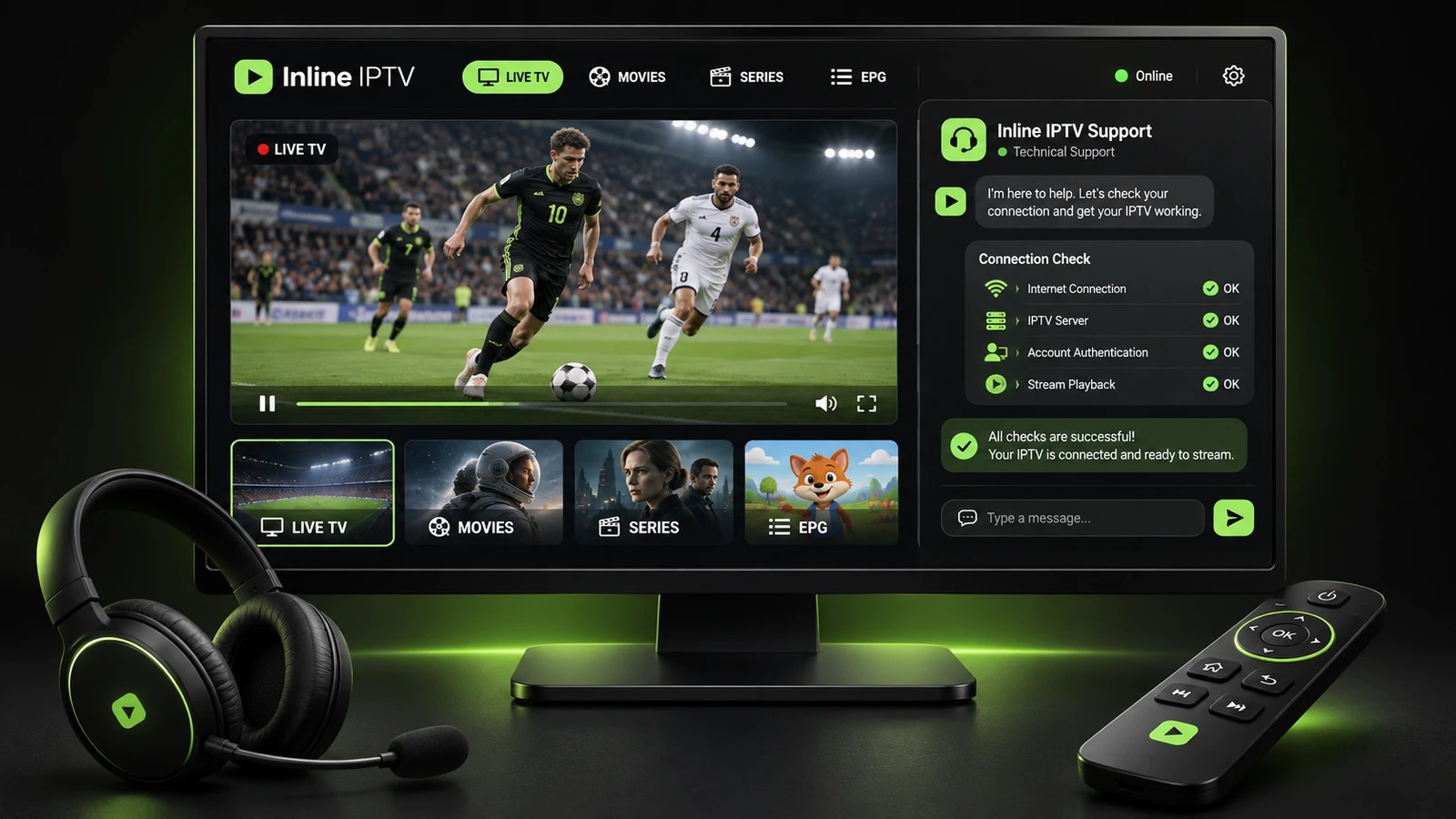
The playlist does not load
Check that you added the login to the correct device ID, with no extra spaces. Then restart the app. If you use an M3U link, make sure you pasted the complete link.
Buffering on Wi-Fi
Test your speed on a phone next to the TV with Speedtest by Ookla. If the result is low, move the router closer, use the 5 GHz band or connect the TV with a cable.
The app disappeared after an update
App stores sometimes remove apps for older TV models. Reinstall it if possible, or switch to another player – your Inline IPTV login works in any compatible app.
The guide is empty
Refresh the EPG in the app’s settings and check that the TV’s date, time and time zone are correct.
The TV is slow with large channel lists
Hide categories you do not watch in the app settings. Older TVs have less memory, so smaller lists load faster.
IPTV on Samsung vs Samsung TV Plus and LG Channels
Samsung TVs include Samsung TV Plus and LG TVs include LG Channels. These are free, ad-supported services with a selection of channels chosen by the TV maker. IPTV on Samsung and LG TVs through a player app is different: you add your own subscription, choose your own app and get the program guide and on-demand library included in your plan. Many people use both – the built-in free channels and their IPTV subscription – side by side.
Sound Settings for IPTV on Samsung and LG
If dialogue is hard to hear, try the TV’s voice enhancement or clear voice setting. If you use a soundbar, set the TV’s audio output to the soundbar and choose auto or bitstream for the digital output format. When sound and picture are out of sync, look for an audio delay or lip sync option in the TV or soundbar settings, or in the player app.
Parental Controls and Profiles
Both Samsung and LG TVs let you lock apps with a PIN in their settings. Most IPTV player apps also let you hide or lock categories. Together, these give you good control over what children can watch when you use IPTV on Samsung or LG TVs at home.
Keeping Your Smart TV Secure
- Install player apps only from the official Samsung or LG app store.
- Keep the TV software up to date.
- Do not share your IPTV login outside your household.
- If you sell or give away the TV, reset it to factory settings so your login is removed.
These simple habits keep IPTV on Samsung and LG TVs running safely and smoothly.
Using Your Phone With Your Smart TV
Many player apps link your playlist through their website, so your phone becomes the easiest way to manage your setup. Keep the player’s website bookmarked on your phone – if you ever need to change your login or add a second playlist, you can do it in a minute without typing on the TV remote.
When a Streaming Stick Is the Better Choice
If your Samsung or LG TV is more than a few years old, a streaming stick can give you faster menus and more app choices. Our Firestick IPTV setup guide shows how to do it. You can use both: IPTV on Samsung TV in the living room and a Firestick in the bedroom, within the number of devices in your plan.
More Questions About IPTV on Samsung and LG
Which Samsung TVs support IPTV apps?
Most Samsung Smart TVs from around 2017 onwards run Tizen with an app store that offers IPTV players. Very old models may not have compatible apps.
Which LG TVs support IPTV apps?
Most LG Smart TVs from around 2016 onwards run webOS and can install IPTV players from the LG Content Store.
Do I pay the app developer or Inline IPTV?
Your Inline IPTV plan covers the service. Some player apps charge their own small one-time fee, which you pay directly to the app developer.
Can I use the same login on my phone?
Yes. Add the same login to a player on your phone. Only the number of devices in your plan can stream at the same time – see our IPTV subscription plans.
Is 4K available on my TV?
If your TV supports 4K and your connection is fast enough, 4K streams play in 4K where they are available.
Start Watching IPTV on Samsung or LG Today
Setting up IPTV on Samsung and LG Smart TVs is quick once you have chosen an app. Want to test it first? Request a free 24-hour trial and try it on your own TV. For more answers, visit our IPTV FAQ.