

IPTV Smarters Pro is one of the most popular IPTV player apps in the world. It is free to download, it runs on phones, tablets, Smart TVs and streaming sticks, and it understands both login types that IPTV services use: Xtream Codes and M3U playlists. This guide shows you how to set up IPTV Smarters step by step on every common device. It also covers the best settings and how to fix the problems people run into most often.
The app is only a player. It does not come with any channels. You add your own subscription, such as an Inline IPTV plan or a free 24-hour trial, and the app loads your live TV, movies, series and program guide.
What Is IPTV Smarters Pro?
IPTV Smarters Pro is a video player made for IPTV. It was developed by WHMCS Smarters and has been around for years, so most IPTV providers support it and write their setup instructions around it. The app turns the login details from your provider into a familiar TV interface with sections for Live TV, Movies, Series and Catch-up, plus an electronic program guide (EPG).
Key features include:
- Xtream Codes and M3U support – log in with a username, password and server URL, or with an M3U playlist link.
- Built-in program guide – with an Xtream Codes login, the EPG loads automatically.
- Multiple profiles – add more than one subscription and switch between them.
- Favourites and parental control – pin the channels you watch most and lock categories with a PIN.
- Multi-screen on some devices – watch up to four channels at once.
- External player support – send a stream to VLC or MX Player if you prefer.
Is IPTV Smarters Free?
The standard app is free to download on most platforms. Some versions show a small number of ads or offer paid extras, and the Smart TV version may ask for a small activation fee after a trial period, depending on the platform. Any fee is paid to the app developer, not to your IPTV provider. Your Inline IPTV subscription is separate and works in IPTV Smarters at no extra cost.
Before You Set Up IPTV Smarters
Have these ready before you start. It makes the setup take about five minutes.
- Your login details – Inline IPTV sends them by email after your order or trial request. You get an Xtream Codes login (server URL, username and password) and an M3U link.
- A stable internet connection – about 10 Mbps for HD and 25 Mbps for 4K.
- Your device’s app store – signed in with your Google, Apple, Amazon, Samsung or LG account.
We recommend the Xtream Codes login. It loads channels, movies, series and the EPG in one step, and it updates automatically when the channel list changes.
How to Set Up IPTV Smarters on Android Phones and Tablets
- Open the Google Play Store and search for IPTV Smarters Pro.
- Install the app from the official developer listing and open it.
- Accept the terms and choose Mobile as the layout.
- Tap Login with Xtream Codes API.
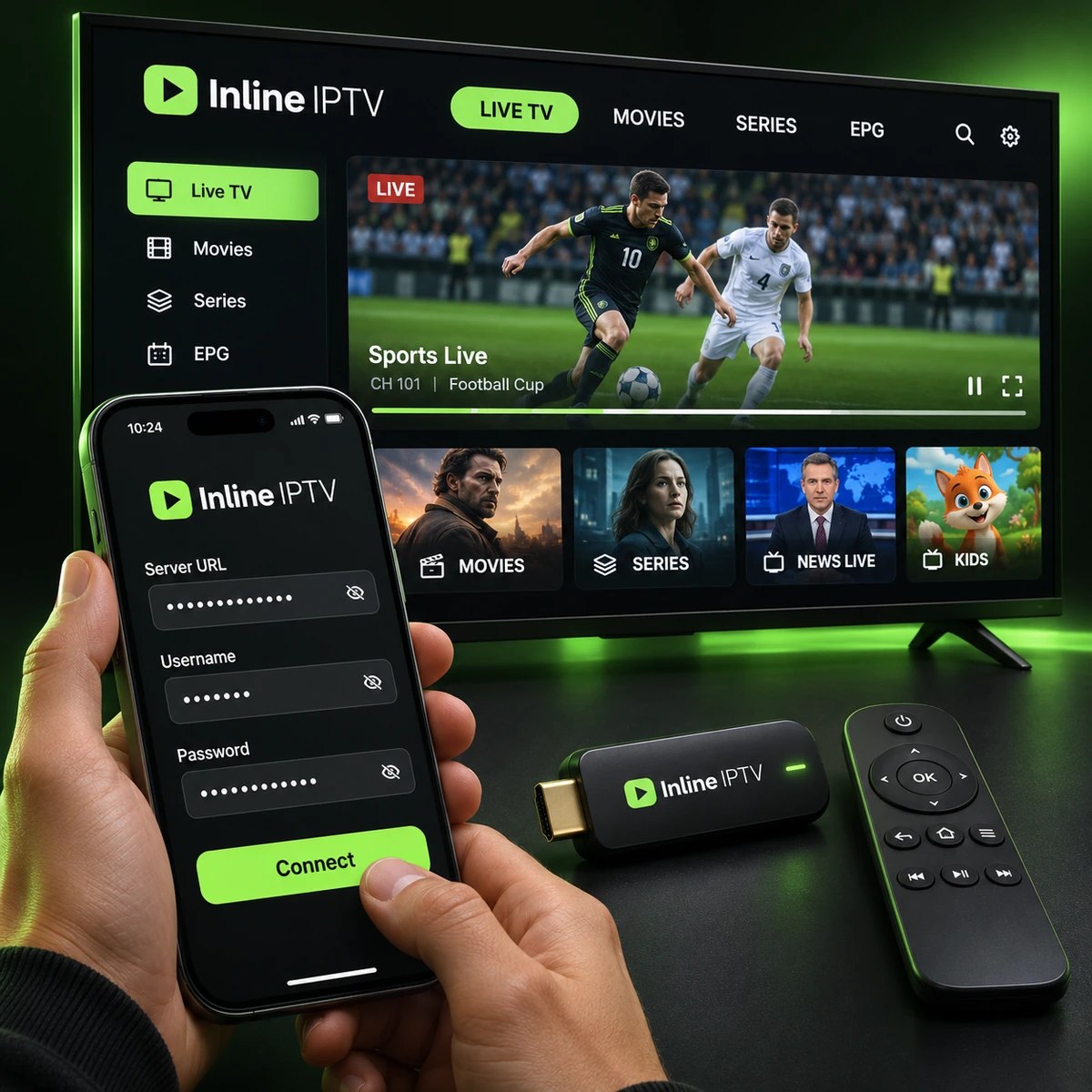
- Enter any name you like (for example “Inline IPTV”), then your username, password and server URL exactly as they appear in your email.
- Tap Add User. The app downloads your channels, movies and series.
- Open Live TV, pick a category and choose a channel.
If the app shows an error, check the server URL first. It must start with http:// or https:// and include the port number if your email shows one.
How to Set Up IPTV Smarters on iPhone, iPad and Apple TV
On Apple devices, look for Smarters Player Lite in the App Store. It is the official Apple version of the player.
- Open the App Store, search for Smarters Player Lite and install it.
- Open the app and accept the terms.
- Choose Login with Xtream Codes API.
- Enter a name, your username, password and server URL.
- Tap Add User and wait for the content to load.
On Apple TV the steps are the same; use the Siri Remote to type your details. A free app such as the Apple TV Remote on your iPhone makes typing much faster.
How to Set Up IPTV Smarters on Firestick and Fire TV
IPTV Smarters is not always listed in the Amazon Appstore, and availability changes by country. First, search the Appstore on your Fire TV for IPTV Smarters. If it is listed, install it from there. If it is not, choose another player from the Appstore, such as an app listed in our Firestick IPTV setup guide, which explains the safest options step by step.
Once the app is installed, the login is the same as on Android:
- Open the app and choose the TV layout.
- Select Login with Xtream Codes API.
- Type your name, username, password and server URL with the on-screen keyboard.
- Select Add User and wait for the download to finish.
Only install apps from official stores. Apps from unknown websites can contain malware and are the most common cause of problems on Firestick.
How to Set Up IPTV Smarters on Samsung and LG Smart TVs
Samsung (Tizen) and LG (webOS) TVs have their own app stores. Search for IPTV Smarters in the Samsung Apps or LG Content Store. If your TV model or region does not list it, use another Smart TV player such as IBO Player; our Samsung and LG IPTV guide compares them.
- Install the app from your TV’s store and open it.
- Choose Login with Xtream Codes API.
- Enter your details and press Add User.
- If the TV app asks for activation, follow the on-screen steps from the developer.
How to Set Up IPTV Smarters on Windows and Mac
The developer offers a desktop version for Windows and macOS on its official website. Download it only from the developer’s own site, install it and log in with Xtream Codes in the same way. On a computer you can also use VLC media player with your M3U link, which our IPTV setup guide explains.
Xtream Codes or M3U in IPTV Smarters?
| Login type | What you enter | EPG | Best for |
|---|---|---|---|
| Xtream Codes API | Server URL, username, password | Loads automatically | Most users – fastest and most complete |
| M3U playlist | One long playlist link | Add the EPG link separately | Players or devices that only accept a playlist |
If you use the M3U option, choose Load Your Playlist or File/URL, paste the M3U link from your email and add the EPG (XMLTV) link under Settings › EPG. Read our EPG guide if the program guide stays empty.
Best IPTV Smarters Settings
A few settings make the app noticeably smoother. Open Settings from the home screen.
- Player selection – keep the built-in player. If a channel stutters, try the Native or Exo player option, or set VLC as an external player.
- Stream format – if channels buffer, switch between MPEG-TS and HLS under Stream Format and test again.
- Time format and time zone – set your local time zone so the EPG shows the correct times.
- Automatic EPG refresh – turn it on so the guide stays up to date.
- Parental control – set a PIN and lock adult or late-night categories if children use the TV.
How to Use IPTV Smarters Every Day
Once your login is added, the home screen shows large tiles for Live TV, Movies, Series and Catch-up. A few habits make daily use easier:
- Add favourites – long-press a channel and add it to Favourites so your most-watched channels are one click away.
- Use search – the magnifying glass finds a channel, movie or series by name in seconds.
- Open the TV guide – the EPG view shows what is on now and next across channels, so you can jump straight to the programme you want.
- Refresh after changes – if new channels are added to your plan, use Refresh or log out and back in to update the list.
IPTV Smarters Tips for Families
If several people share the TV, a little setup makes the app easier for everyone:
- Set up parental control first. Choose a PIN in Settings and lock the categories children should not see. The lock applies to live TV, movies and series.
- Create a favourites list for each person. Keep the kids’ channels, sport and news in separate favourites so nobody has to scroll through the full list.
- Use the same login on every device in your plan. Install the app on the phones and tablets in your home and log in with the same details – just keep within the number of screens in your plan.
- Turn on subtitles where available. Many films and series include subtitles; open the player menu while watching to switch them on.
- Keep the app updated. Updates add features and fix bugs, so allow automatic updates in your app store.
These small steps turn the app into a simple, family-friendly TV service that everyone in the home can use without help.
IPTV Smarters Not Working? Common Problems and Fixes
“Invalid username or password”
Check for extra spaces and for letters that look alike, such as a capital I and a small l. Copy and paste the details from your email where possible. Make sure your subscription or trial is still active.
Channels load but the EPG is empty
Go to Settings › Refresh EPG or log out and back in. With an M3U login, make sure you added the EPG link. Wait a few minutes – large guides can take time to download.
Buffering or freezing
Restart your router and device, use a cable or 5 GHz Wi-Fi, and try the other stream format. Our full IPTV buffering fix guide lists every step.
The app closes or will not open
Clear the app cache (on Android and Fire TV: Settings › Applications › IPTV Smarters › Clear cache), update the app, or reinstall it. Then log in again.
Wrong times in the program guide
Set the correct time zone in the app and on the device itself. If times are still out by an hour, adjust the EPG time shift option in Settings.
IPTV Smarters Alternatives
It is a great all-round player, but it is not the only choice. Many users prefer:
- TiviMate – the best-looking player for Android TV, Firestick and Android boxes, with a powerful TV guide.
- IBO Player – popular on Samsung and LG Smart TVs.
- VLC – a free player for computers and phones that plays M3U links.
- Built-in portals on MAG and Formuler boxes – see our MAG box setup guide.
Your Inline IPTV login works with all of them, so you can switch player at any time without changing your subscription.
Why Use Inline IPTV With IPTV Smarters?
Inline IPTV is built to work smoothly in IPTV Smarters. Your login includes live channels, movies, series and a full program guide, in HD and 4K where available. Plans run for 3, 6 or 12 months on 1, 2 or 3 devices, starting from about $7.50 a month on the 12-month plan. You can see every option on our IPTV subscription plans page.
Not sure yet? Request a free 24-hour IPTV trial, add it to the app with the steps above and test it on your own TV. If you get stuck, message our team on WhatsApp or Telegram and we will walk you through the IPTV Smarters setup.
IPTV Smarters FAQ
Is IPTV Smarters legal?
Yes. It is a legal media player, like VLC. It contains no content of its own. You are responsible for adding a subscription you have the right to use.
Can I use the app on more than one device?
Yes. Install the app on each device and log in with the same details. The number of devices that can stream at the same time depends on your plan – 1, 2 or 3 with Inline IPTV.
Does IPTV Smarters support 4K?
Yes, if your device, TV and internet connection support 4K and the channel or film is available in 4K.
Can I record shows with it?
Some versions offer a recording option on Android. Recording depends on your device’s storage and on the stream. TiviMate Premium has more advanced recording features.
Do I need a VPN for IPTV Smarters?
No, a VPN is not required. Some users choose one for privacy or if their internet provider slows down streaming. If you use a VPN, pick a fast server close to you.
Where do I find my IPTV Smarters login details?
Inline IPTV sends them by email after your order or free trial is activated. Check your spam folder, or contact us through our contact page and we will resend them.