

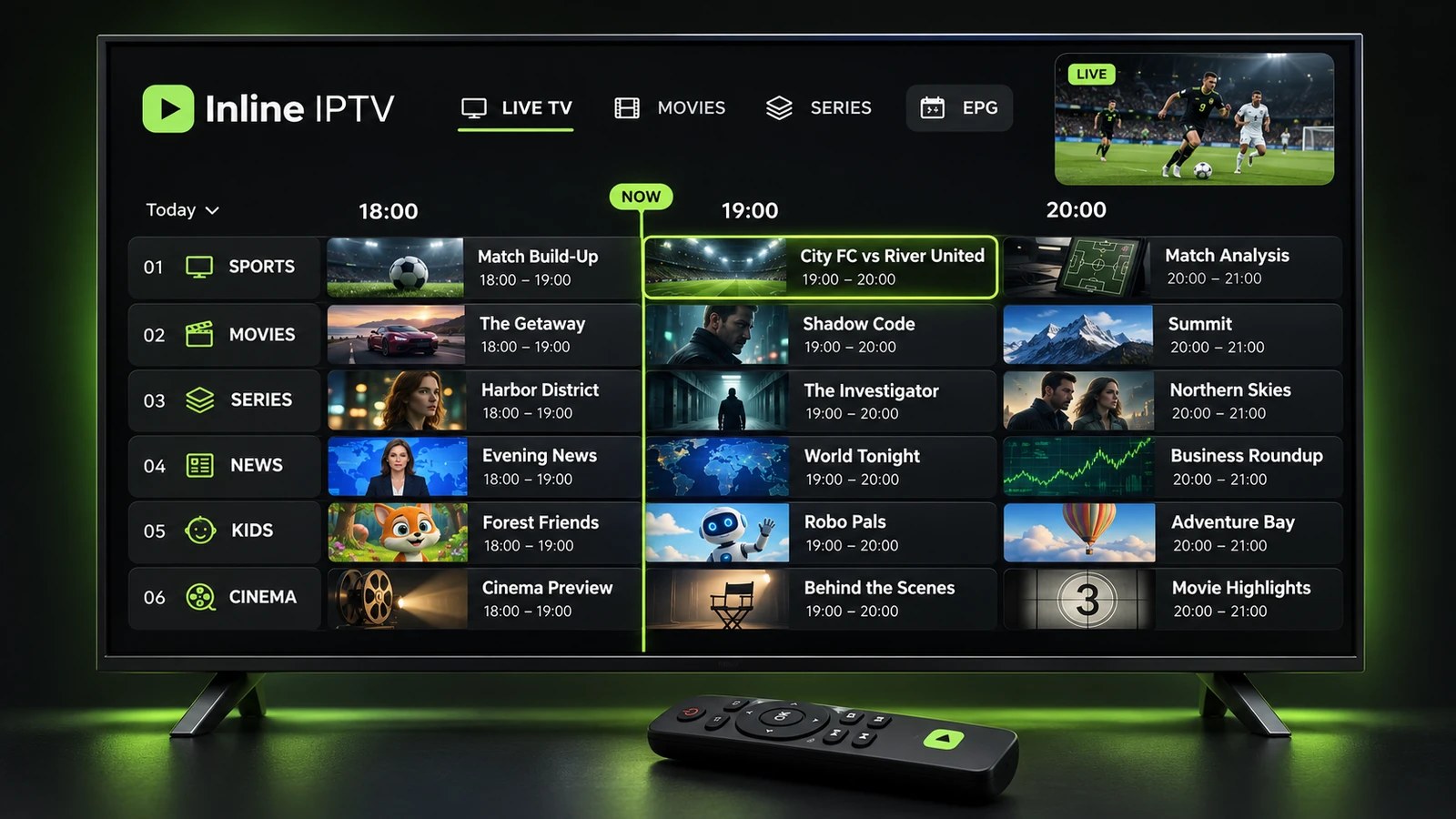
TiviMate is widely seen as the best IPTV player for Android TV. It looks like a modern cable TV box, has one of the clearest TV guides of any app, and works smoothly on Firestick, Fire TV, NVIDIA Shield, Google TV and Android boxes. This TiviMate setup guide shows you how to install the app, add your playlist, load the program guide and get the most out of TiviMate Premium.
Like every IPTV player, it has no channels of its own. You add an IPTV subscription, such as an Inline IPTV plan or a free 24-hour trial, and TiviMate turns it into a full TV experience.
What Is TiviMate?
TiviMate IPTV Player is an Android app made for TV screens. It is designed to be used with a remote control, so everything – channels, guide, recordings and settings – can be reached with a few clicks. TiviMate supports both Xtream Codes logins and M3U playlists, and it shows the electronic program guide (EPG) in a grid that looks just like a cable or satellite box.
What makes it so popular:
- A clean, fast TV guide – browse what is on now and later across all channels.
- Channel groups and favourites – reorder, hide and rename groups.
- Catch-up – watch shows that already aired, if your provider supports it on that channel.
- Recording (Premium) – record live TV to your device or a USB drive.
- Multiple playlists (Premium) – add more than one subscription.
- Multi-view (Premium) – watch several channels at once on supported devices.
Which Devices Support TiviMate?
The app runs on devices based on Android TV only. That includes:
- Amazon Firestick and Fire TV (Fire OS is based on Android)
- Google TV and Chromecast with Google TV
- NVIDIA Shield and most Android TV boxes
- Smart TVs that run Android TV or Google TV, such as many Sony, TCL, Philips and Hisense models
TiviMate is not available on Samsung (Tizen) or LG (webOS) TVs, iPhone, iPad, Apple TV or Windows. On those devices, use another player from our IPTV setup guide, such as IPTV Smarters or IBO Player.
TiviMate Free vs TiviMate Premium
The app can be used for free with one playlist and the basic features. Premium unlocks the extras for a fee paid to the app developer (offered as a yearly subscription or a one-time lifetime purchase; prices are set by the developer and can change). Premium is bought through the TiviMate Companion app on an Android phone and can be used on several of your devices.
| Feature | TiviMate Free | TiviMate Premium |
|---|---|---|
| Live TV and TV guide | Yes | Yes |
| Number of playlists | 1 | Several |
| Favourites and group management | Basic | Full |
| Recording | No | Yes |
| Catch-up | No | Yes (if supported) |
| Multi-view | No | Yes |
The Premium fee goes to the developer and is separate from your IPTV subscription. Many people try the free version first, then upgrade if they want recording or catch-up.
How to Install TiviMate
On Google TV, Android TV and NVIDIA Shield
- Open the Google Play Store on your TV device.
- Search for TiviMate IPTV Player.
- Select Install and open the app when it finishes.
On Firestick and Fire TV
TiviMate is not listed in the Amazon Appstore in every country. Search the Appstore first. If it is not there, our Firestick IPTV setup guide explains the players available in the Appstore and how to install them safely. Only use apps from official sources – apps from unknown websites can contain malware.
How to Set Up TiviMate With Xtream Codes
Xtream Codes is the easiest way to set it up, because it loads channels, the TV guide, movies and series in one go.
- Open the app and select Add playlist.
- Choose Xtream Codes.
- Enter the server address from your Inline IPTV email, including
http://and the port number if shown. Select Next. - Enter your username and password and select Next.
- The app checks the login and shows the number of channels, movies and series found. Select Next.
- Give the playlist a name, such as “Inline IPTV”, and select Done.
It now downloads the TV guide. The first download can take a minute or two. When it finishes, the channel list and guide appear on the main screen.
How to Set Up TiviMate With an M3U Link
- Select Add playlist and choose Enter URL.
- Type or paste the full M3U link from your email and select Next.
- Name the playlist and select Done.
- Go to Settings › EPG › Add EPG source and enter the EPG (XMLTV) link from your email.
- Select Update EPG to load the guide.
Typing a long M3U link with a remote is slow. The Companion app or a short link from your provider can help. With Xtream Codes you avoid this step completely, which is why we recommend it. Read our EPG guide if your guide stays empty.
Best TiviMate Settings
Open Settings from the left-hand menu. These changes give the smoothest experience:
- Playlists › Update playlist on app start – keeps the channel list current.
- EPG › Update interval – set to every 12 or 24 hours.
- EPG › Time shift – adjust if guide times are an hour out.
- Playback › Buffer size – if channels stutter, try Medium or Large.
- Playback › Decoder – leave on Auto; try Software if a channel shows a black screen with sound.
- Appearance › Start on – choose Last channel so the app opens straight into TV.
- General › Auto start on boot – useful if your device is used only for TV.
Using TiviMate Like a Pro
Create a favourites group
Long-press OK on any channel and choose Add to favourites. Your favourites appear as their own group at the top of the list.
Hide groups you never watch
Go to Settings › Playlists › your playlist › Manage groups and untick the groups you do not need. This keeps the guide short and fast.
Record a programme (Premium)
In the TV guide, select a future programme and choose Record. Choose a recording folder on internal storage or a USB drive in Settings › Recording.
Watch catch-up (Premium)
Channels with catch-up show a small clock icon. Move back in the guide, select a programme that has already aired and press play.
Tips for Large Channel Lists
Big IPTV subscriptions can contain thousands of channels, movies and series. On a powerful device like an NVIDIA Shield that is no problem, but on an older Firestick it can make the guide feel slow. These tips keep everything quick:
- Hide the groups you never watch. Fewer groups means a smaller guide to load and scroll.
- Limit how many days of guide data are stored. In the EPG settings, keeping one to three days is plenty for most people.
- Turn off movie and series loading in the playlist settings if you only watch live TV in this player – you can use another app for films.
- Keep storage free. Leave at least 1 GB free on your device so the guide database has room to work.
- Restart your device now and then. A weekly restart clears memory on streaming sticks.
Is TiviMate Worth It?
For anyone who mainly watches live TV on an Android TV device, the answer is usually yes. The free version already gives you one of the best channel lists and TV guides available, and it costs nothing to try. Premium makes sense if you want to record programmes, use catch-up, add a second playlist or watch several channels at once. The fee is small compared with a cable or satellite box rental, and it is paid once a year or once for life, depending on the option you choose from the developer.
If you mostly watch films and box sets, or you use iPhones and Samsung TVs, another player may suit you better. The good news is that your Inline IPTV login works in all of them, so you can try several and keep the one you like best.
Back Up and Restore Your TiviMate Settings
After you have arranged your favourites, hidden groups and chosen your settings, it is worth saving a backup. If you reset your device, buy a new Firestick or reinstall the app, you can restore everything in a minute instead of starting again.
- Open Settings › General.
- Choose Backup data and save the file to your device or a USB drive.
- On the new device, install the app, open Settings › General › Restore data and pick the backup file.
The backup includes your playlists, favourites, group order and most settings. Make a new backup whenever you change a lot, for example after reorganising your channel groups. If you move to a new device, remember that the number of screens streaming at the same time still depends on your plan.
TiviMate Problems and Quick Fixes
“Playlist is empty” or “Login failed”
Check the server address, username and password for typing mistakes and make sure your plan or trial is active. Copy the details again from your email.
TV guide shows “No information”
Select Settings › EPG › Update EPG. With an M3U login, make sure the EPG source is added. Large guides take time to load on slower devices.
Buffering or freezing
Raise the buffer size, restart your router and device and use a wired or 5 GHz connection. See our complete IPTV buffering fix for more steps.
TiviMate is slow on an older Firestick
Hide unused groups, close background apps and clear the cache of apps you do not use. Older devices with little memory struggle with very large guides.
Premium is not active
Open the TiviMate Companion app on your phone, sign in with the same account and select Activate on the TV device again.
TiviMate vs IPTV Smarters
| TiviMate | IPTV Smarters | |
|---|---|---|
| Devices | Android TV, Fire TV, Android boxes | Android, Apple, some Smart TVs, Windows, Mac |
| TV guide | Excellent grid guide | Good |
| Movies and series | Basic | Strong |
| Recording | Yes (Premium) | Limited |
| Price | Free, Premium paid to developer | Free on most platforms |
Choose it if you mainly watch live TV on an Android TV device. Choose IPTV Smarters if you watch lots of movies and series or use phones and Apple devices. Many people use both with the same Inline IPTV login.
Get Started With TiviMate and Inline IPTV
Inline IPTV works perfectly in TiviMate with an Xtream Codes login that loads live channels, the full TV guide, movies and series in one step. Plans run for 3, 6 or 12 months on 1, 2 or 3 devices, from about $7.50 a month on the 12-month plan. Compare every option on our IPTV subscription plans page, or request a free 24-hour trial and test TiviMate on your own TV first.
Need help getting started? Message us on WhatsApp or Telegram and a real person will guide you step by step.
TiviMate FAQ
Is the app free?
Yes, the basic version is free. Premium is an optional paid upgrade from the developer that adds recording, catch-up, multiple playlists and more.
Can I use TiviMate on Samsung or LG TVs?
No. It runs only on Android-based devices. Plug a Firestick or Google TV stick into your Samsung or LG TV, or use a Smart TV player instead.
Does TiviMate work with Inline IPTV?
Yes. Use the Xtream Codes option with the details from your Inline IPTV email for the quickest setup.
Why are some channels missing?
You may have hidden their group. Check Manage groups in the playlist settings, then update the playlist.
Can I use it on several devices?
Yes. One Premium account can be activated on several devices. How many devices can stream at the same time depends on your IPTV plan – 1, 2 or 3 with Inline IPTV.
Where can I get setup help?
Our team helps with player setup every day. Use our contact page, WhatsApp or Telegram.