

When you buy an IPTV subscription, you usually get two ways to log in: an M3U playlist link and an Xtream Codes login. Both give you the same channels, but they work differently, and choosing the right one makes setup easier and your TV guide more reliable. This guide explains M3U vs Xtream Codes in plain words, shows when to use each and how to set them up in popular players.
What Is an M3U Playlist?
An M3U playlist is a simple text file – or a link to one – that lists every stream in your subscription. Each entry contains a channel name, a logo, a group such as “Sports” or “News” and the address of the stream. The format is decades old and is supported by almost every media player, from VLC to Kodi. You can read more about the format on Wikipedia’s M3U page.
An M3U link from an IPTV provider usually looks like a long web address that includes your username and password. You paste the whole link into your player, and the player downloads the channel list.
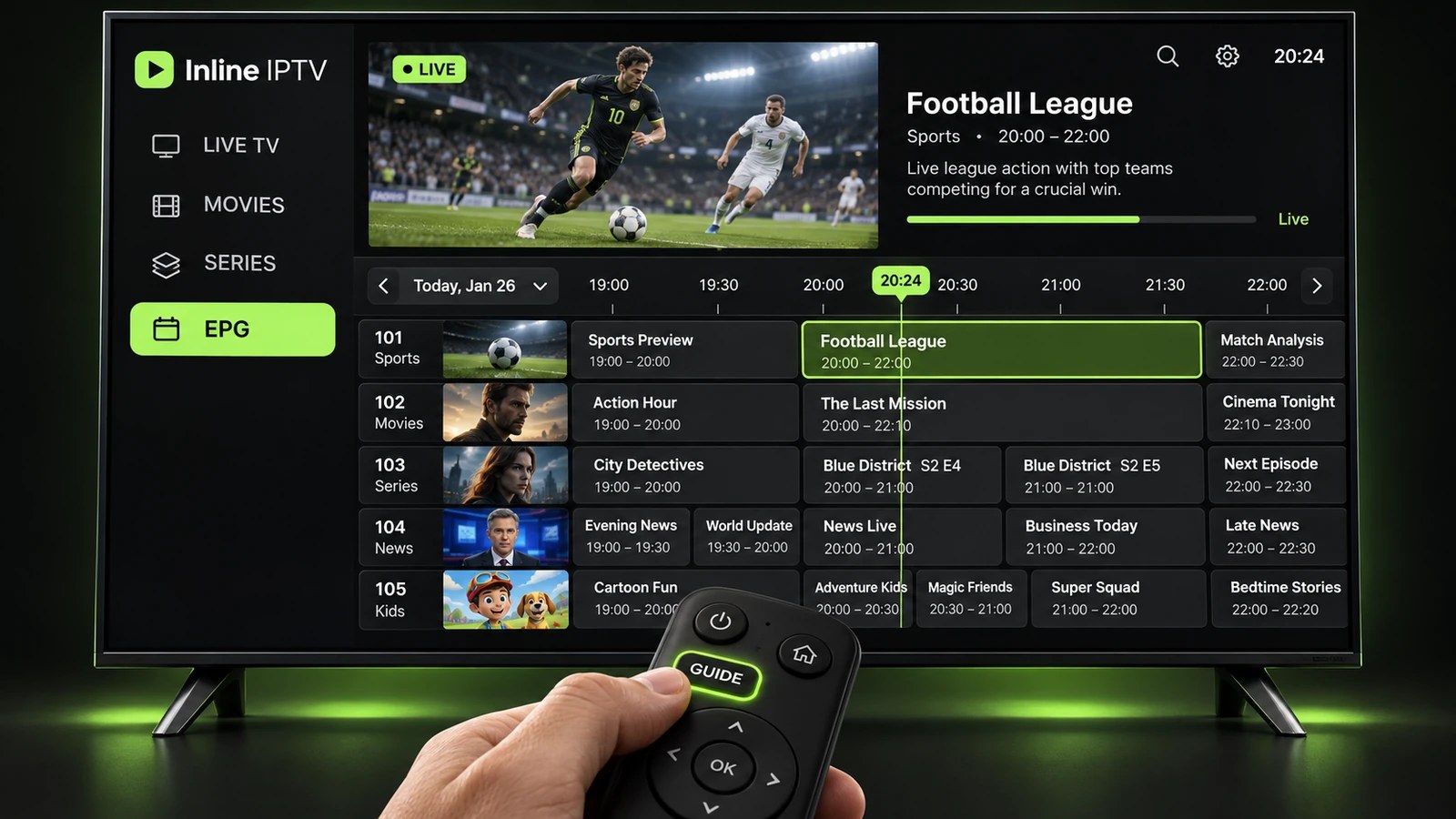
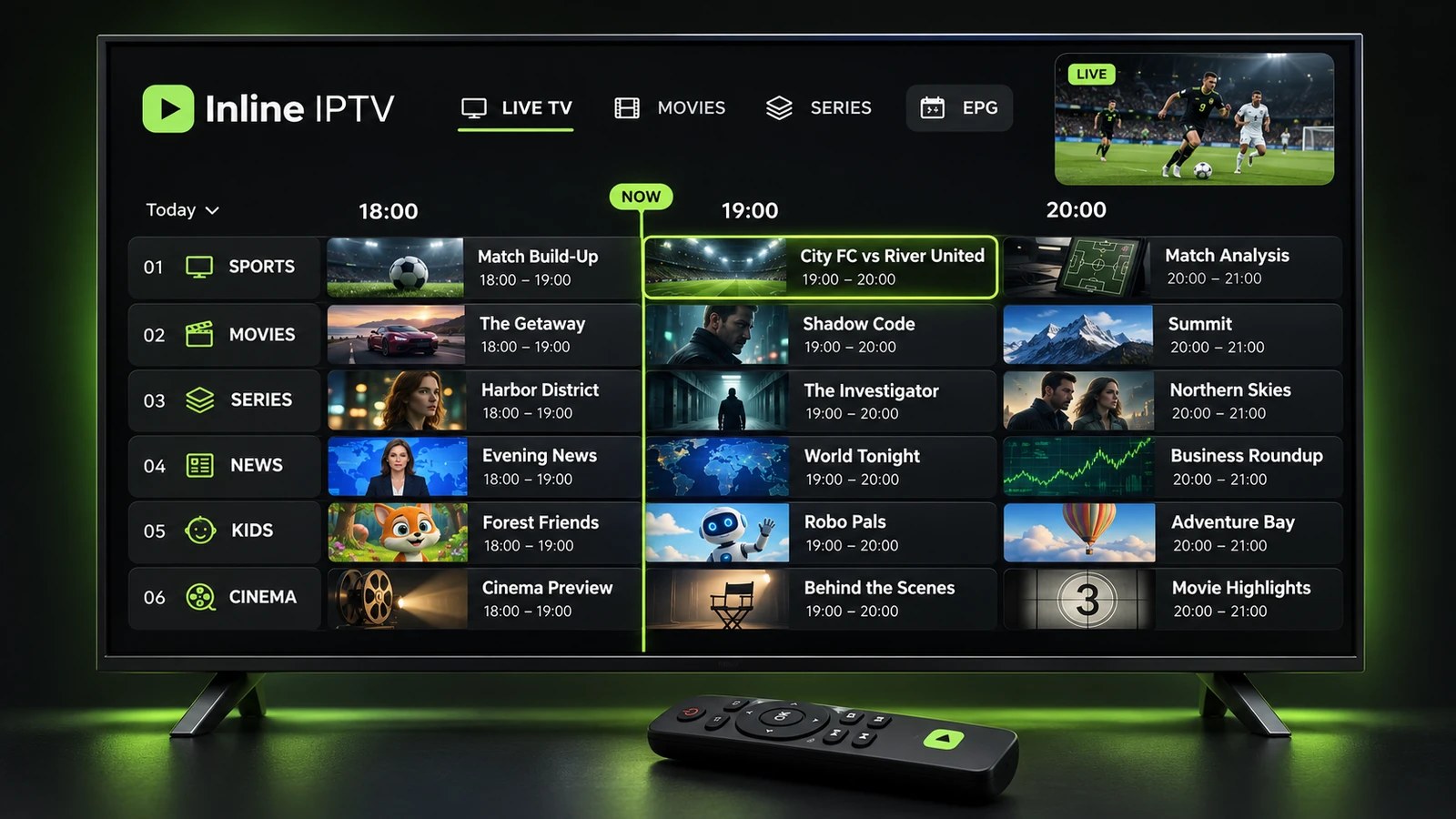
On its own, an M3U playlist does not include the program guide. For the EPG, you add a second link – the XMLTV guide URL – in the player’s settings.
What Are Xtream Codes?
Xtream Codes is a login method that uses three details instead of one long link:
- Server URL – the address of the service, often with a port number.
- Username
- Password
When you log in with Xtream Codes, the player talks to the server through an API. It downloads live channels, the program guide, movies, series and catch-up information separately and keeps them up to date automatically. The name comes from software originally used by many IPTV services; today “Xtream Codes” simply means this type of login, and nearly all modern players support it.
M3U vs Xtream Codes: Side-by-Side Comparison
| M3U playlist | Xtream Codes | |
|---|---|---|
| What you enter | One long link | Server URL, username, password |
| Program guide (EPG) | Add a separate XMLTV link | Loads automatically |
| Movies and series | Mixed into one long list | Separate, organised sections |
| Catch-up | Limited support | Supported in many players |
| Updates | Reload the playlist manually or on a schedule | Updates automatically |
| Typing with a remote | Slow – very long link | Quick – three short fields |
| Player support | Almost every player, including VLC and Kodi | Most IPTV players |
Which Should You Use?
For most people, the answer is simple: use Xtream Codes whenever your player supports it. It is quicker to type, loads the guide without extra steps and keeps movies and series neatly organised. Players such as TiviMate, IPTV Smarters, XCIPTV, GSE Smart IPTV and Formuler’s MyTVOnline all support it.
Use the M3U playlist when:
- your player does not offer an Xtream Codes option (for example VLC or some Smart TV apps)
- you want to open your channels quickly on a computer for a test
- a player such as IBO Player asks you to upload a playlist link on its website
And if you have a MAG box, you will use neither – MAG boxes connect to a portal with your MAC address. See our MAG box setup guide.
How to Set Up Xtream Codes
The steps are almost the same in every player:
- Open the player and look for Add user, Add playlist or Login with Xtream Codes API.
- Choose Xtream Codes.
- Enter a name, for example “Inline IPTV”.
- Type the server URL exactly as in your email, including
http://and the port number if there is one. - Enter your username and password.
- Save or select Add user. The player downloads your channels and guide.
How to Set Up an M3U Playlist
- In your player, choose Add playlist and then M3U URL or Enter URL.
- Paste the full M3U link from your email. Copy and paste is far easier than typing.
- Give the playlist a name and save.
- Open the player’s EPG settings and add the XMLTV guide link from your email.
- Update the EPG and wait for the guide to load.
If the guide stays empty, read our guide to what an EPG is and how to fix it.
Common Problems With M3U and Xtream Codes
“Invalid login” with Xtream Codes
Check the server URL first. The most common mistakes are a missing http://, a missing port number or an extra space at the end. Then check the username and password for letters that look alike.
The M3U playlist will not load
Make sure you copied the whole link – they are long and easy to cut short. Some players also need the playlist type set to “M3U Plus”. Try opening the link in VLC to see whether it works there.
Channels load but there is no guide
With M3U, add the XMLTV link. With Xtream Codes, refresh the EPG in settings or log out and back in.
Movies and series are missing
Some players only show live channels from an M3U playlist. Switch to Xtream Codes to see the full on-demand library.
Channels buffer
The login type does not change stream quality. If channels freeze, follow our IPTV buffering fix guide.
What an Xtream Codes Login Looks Like
Your login email contains three lines. They usually look like this (these are examples, not real details):
- Server URL:
http://example-server.com:8080 - Username:
john123 - Password:
a1b2c3d4
Type the server URL exactly as shown. Some players want the port in the same field (:8080 at the end), others have a separate port box – if so, enter the URL without the port and type 8080 in the port field.
What an M3U Link Looks Like
An M3U link is one long address that contains the same details. A typical example looks like http://example-server.com:8080/get.php?username=john123&password=a1b2c3d4&type=m3u_plus&output=ts. The type=m3u_plus part adds channel logos and groups, and output=ts or output=m3u8 sets the stream format. If channels buffer, some users switch between the two output types.
The EPG link is usually similar and ends in xmltv.php with your username and password. You add it in the player’s guide settings.
Why Most Players Prefer Xtream Codes
Because Xtream Codes is an API rather than a single file, the player can ask the server only for what it needs. It downloads the channel list, then the guide, then the movie and series catalogue, and refreshes each part on its own schedule. This makes large subscriptions load faster and keeps the on-demand library organised into categories, seasons and episodes. An M3U playlist, by contrast, has to be downloaded in full every time it refreshes, and on-demand titles appear as one long list.
That is why most modern apps put the Xtream Codes option first, and why we recommend it for nearly every device.
Is One Safer Than the Other?
Both methods contain your login details, so treat them like a password. Do not post your M3U link or Xtream Codes login online or share them outside your household. If you think someone else is using your login, contact your provider to change it. With Inline IPTV, the number of devices that can stream at the same time is limited by your plan – 1, 2 or 3 – so sharing your login can also stop your own screens from working.
M3U vs Xtream Codes on Different Devices
- Firestick and Android TV: Xtream Codes in TiviMate or IPTV Smarters.
- Samsung and LG TVs: depends on the app – many use an M3U link added through the developer’s website.
- iPhone, iPad and Apple TV: Xtream Codes in Smarters Player Lite or GSE Smart IPTV. See our Apple TV and iPhone IPTV guide.
- Windows and Mac: M3U in VLC for a quick test, Xtream Codes in a full player.
- MAG and Formuler: portal URL with your MAC address, or Xtream Codes on Formuler.
Our complete IPTV setup guide has step-by-step instructions for each device.
Get Both Login Types With Inline IPTV
Every Inline IPTV subscription includes an Xtream Codes login and an M3U playlist with an EPG link, and MAG portal activation on request. That means it works with any player and any device you choose. Plans run for 3, 6 or 12 months on 1, 2 or 3 devices, from about $7.50 a month on the 12-month plan – see our IPTV subscription plans.
Want to test first? Request a free 24-hour IPTV trial. You receive both login types by email, so you can try Xtream Codes and M3U on your own devices and see which you prefer.
M3U vs Xtream Codes FAQ
Are M3U and Xtream Codes the same subscription?
Yes. They are two ways to access the same channels, guide and on-demand content.
Which is better for Firestick?
Xtream Codes. It is much quicker to type with the Fire TV remote and loads the guide automatically.
Can I use M3U and Xtream Codes at the same time?
Yes, on different devices, as long as you stay within the number of screens in your plan.
Why does my M3U link not include the TV guide?
The playlist only lists streams. The guide comes from a separate XMLTV link that you add in the player’s EPG settings.
What does the port number in the server URL mean?
It tells the player which “door” on the server to use. If your email shows a port, such as :8080, it must be included.
Where do I find my Xtream Codes details?
In the email Inline IPTV sends after your order or trial is activated. Check your spam folder, or ask us through our contact page.