

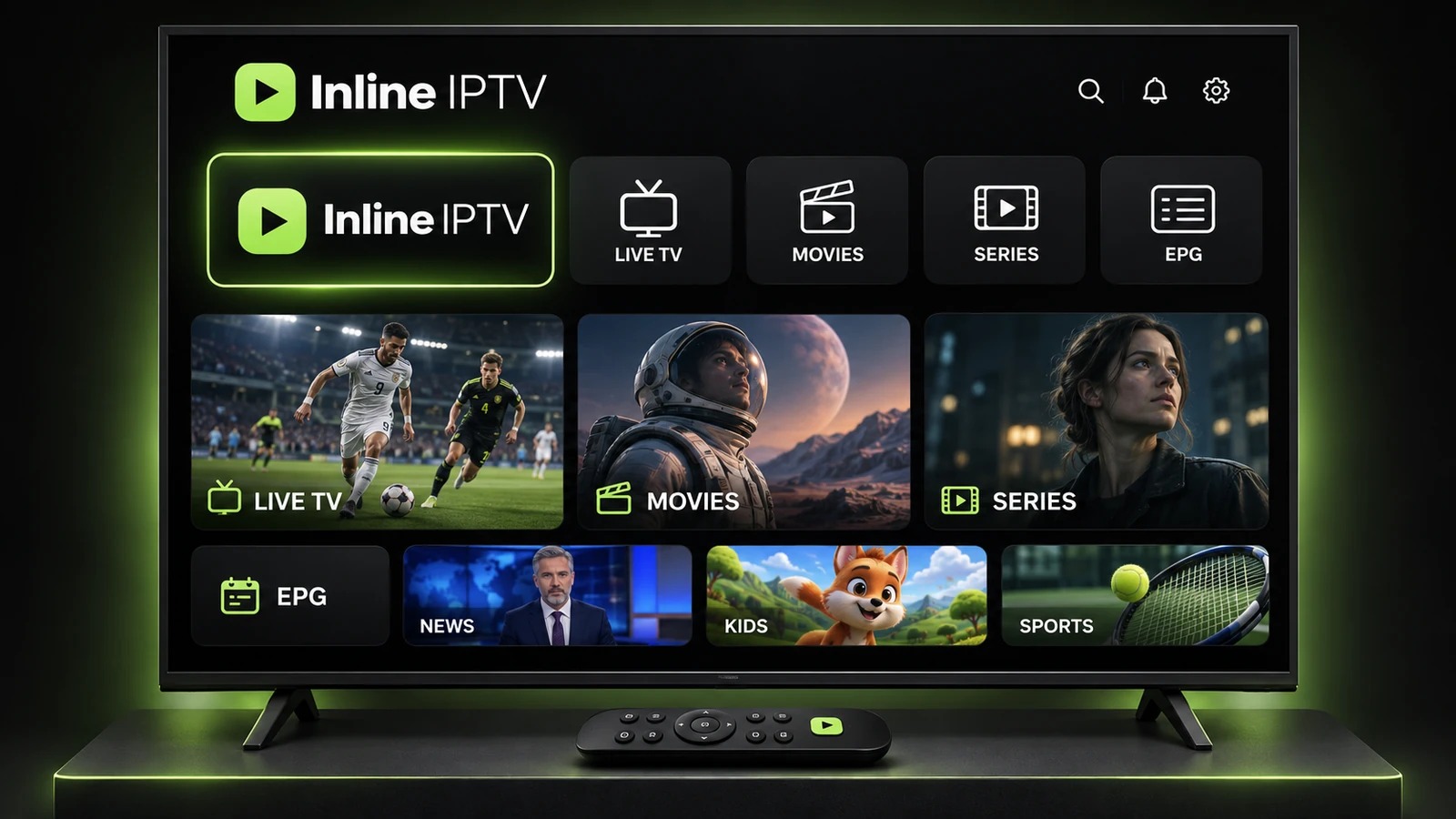
An Android TV box is one of the most flexible ways to watch IPTV. It plugs into any TV with HDMI, runs the best IPTV player apps from Google Play and usually has an Ethernet port for a rock-solid connection. This guide explains how to choose an Android TV box for IPTV, how to set it up step by step, which apps to install and which settings give the smoothest picture.
What Is an Android TV Box?
An Android TV box is a small media player that runs a version of Android designed for television. You connect it to your TV with an HDMI cable and to the internet by Ethernet or Wi-Fi, then install apps just like on a phone – but with a big-screen interface and a remote control.
There are two main types, and the difference matters:
- Google-certified Android TV / Google TV boxes – such as the NVIDIA Shield, Google TV Streamer, Chromecast with Google TV and many operator boxes. They get security updates, have the official Google Play Store and run mainstream apps reliably.
- Uncertified “generic” Android boxes – often sold cheaply online. Some work well, but many run a phone version of Android, receive no updates and may come with unknown pre-installed apps.
For security and reliability, we recommend a certified Android TV or Google TV device. It will run every IPTV player in this guide without problems.
Why Use an Android TV Box for IPTV?
- The best apps – TiviMate, IPTV Smarters, XCIPTV and others are all on Google Play.
- Ethernet port – most Android TV boxes have one, which helps stop buffering.
- More power than many Smart TVs – faster menus and a smoother TV guide.
- Works with any TV – even an older TV without smart features.
- Room to grow – install streaming apps, games and a VPN if you need one.
How to Choose the Best Android TV Box for IPTV
| Feature | Minimum | Recommended |
|---|---|---|
| RAM | 2 GB | 3–4 GB or more |
| Storage | 8 GB | 16–32 GB |
| Network | 5 GHz Wi-Fi | Gigabit Ethernet + Wi-Fi 5/6 |
| Video | 1080p, H.265 (HEVC) | 4K HDR, HEVC and AV1 |
| Software | Recent Android TV version | Google-certified with regular updates |
The NVIDIA Shield TV is a long-time favourite because of its powerful processor and Ethernet port. Google TV devices and certified boxes from well-known brands are great value. Avoid very cheap boxes that promise “free channels” – they often contain unsafe apps.
How to Set Up an Android TV Box for IPTV
Step 1: Connect and update
- Connect the Android TV box to your TV with HDMI and to your router with an Ethernet cable if possible.
- Follow the on-screen setup and sign in with your Google account.
- Go to Settings › Device Preferences › About › System update and install any updates.
Step 2: Install an IPTV player
- Open the Google Play Store.
- Search for a player such as TiviMate IPTV Player, IPTV Smarters Pro or XCIPTV.
- Select Install.
Step 3: Add your Inline IPTV login
- Open the player and choose Add playlist or Login with Xtream Codes.
- Enter the server URL, username and password from your Inline IPTV email.
- Save and wait while the channels and TV guide load.
Full player instructions are in our TiviMate setup guide and IPTV Smarters guide. If you are not sure whether to use Xtream Codes or M3U, read M3U vs Xtream Codes.
Best IPTV Apps for an Android TV Box
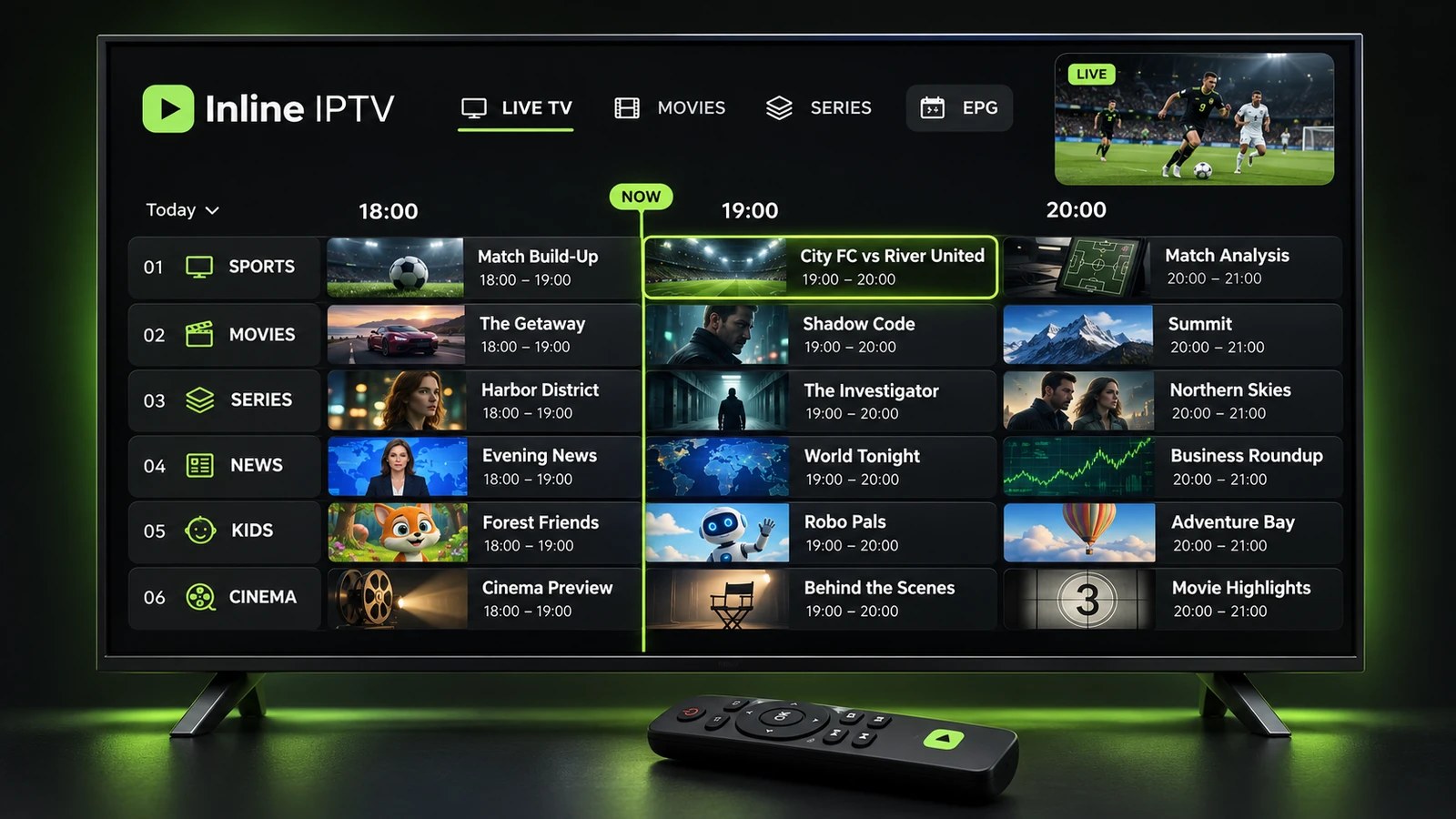
- TiviMate – the best live TV guide, built for the remote. Premium adds recording and catch-up.
- IPTV Smarters Pro – strong movies and series section and a familiar layout.
- XCIPTV – light, free and fast on older boxes.
- Televizo – simple player with a clean guide.
- OTT Navigator – highly customisable for advanced users.
Compare them in more detail in our best IPTV player apps guide.
Best Android TV Box Settings for IPTV
- Display resolution – Settings › Device Preferences › Display & Sound: set the resolution to match your TV (4K or 1080p).
- Match content frame rate – turn on “Match content frame rate” or “Auto frame rate” if your box offers it, for smoother sport and films.
- Ethernet first – use a cable; if not, connect to the 5 GHz Wi-Fi network.
- Screen saver – set a longer delay so it does not interrupt long programmes.
- Player buffer – in your IPTV app, raise the buffer size to Medium or Large if channels stutter.
- Clear cache occasionally – Settings › Apps › your player › Clear cache.
Keeping Your Android TV Box Fast
Over time, apps and cached data can slow a box down. These habits keep it quick:
- Uninstall apps you never use. Fewer apps means more free memory.
- Keep at least 1–2 GB of storage free. Check under Settings › Device Preferences › Storage.
- Restart weekly. A quick restart clears memory and refreshes the network connection.
- Keep the box cool. Do not hide it in a closed cabinet; overheating causes stutter.
- Install updates for the system and your IPTV app.
Useful Extras for Your Android TV Box
A few inexpensive accessories make everyday IPTV viewing even better:
- A voice remote – many certified boxes include Google Assistant, so you can open apps and search by voice.
- A wireless keyboard or phone remote app – typing login details and searching for films is much faster than with arrow keys.
- A USB drive – useful for recordings in TiviMate Premium or for backing up your player settings.
- A good HDMI cable – for 4K HDR, use a High Speed or Premium High Speed cable.
- A powerline or mesh Wi-Fi kit – if you cannot run a cable to the TV, this brings a strong connection to the living room.
Setting Up IPTV for the Whole Family
Because an Android TV box can hold several apps and profiles, it works well as a family TV hub. Set a parental PIN in your IPTV player to lock adult or late-night groups, create a favourites list for children’s channels and put the player app in the first position on the home screen so anyone can find it. On Google TV devices you can also create a kids profile with its own app list.
If family members watch on phones and tablets as well, install the same player there and log in with the same details, keeping within the number of screens in your plan.
Android TV Box Problems and Quick Fixes
Channels buffer or freeze
Use Ethernet, restart the router and box, raise the player buffer and try the other stream format (TS or HLS). Our IPTV buffering fix guide lists 15 proven solutions.
No picture or a black screen with sound
In the player settings, switch the decoder from hardware to software (or the reverse). Check that the display resolution matches what your TV supports.
The TV guide is empty
Update the EPG in the player settings. With an M3U login, add the XMLTV guide link. See our EPG guide.
The remote does not work in the app
Some generic boxes ship with basic remotes. A Bluetooth remote or a phone remote app often works better with IPTV players.
Google Play is missing
Uncertified boxes may not include the official Play Store. In that case, we recommend using a certified Android TV or Google TV device instead of installing apps from unknown sources.
Android TV Box vs Firestick vs Smart TV
| Android TV box | Firestick | Smart TV app | |
|---|---|---|---|
| App choice | Full Google Play | Amazon Appstore | TV app store only |
| Ethernet | Usually built in | Adapter needed | Usually built in |
| Performance | Good to excellent | Good | Varies |
| TiviMate support | Yes | Where available | No (Samsung/LG) |
| Price | Low to high | Low | Included with TV |
If you already have a Firestick, our Firestick IPTV guide and best Firestick settings will help. For every other device, see our complete IPTV setup guide.
Watch Inline IPTV on Your Android TV Box
Inline IPTV works with every Android TV box player through Xtream Codes or M3U, with live channels, a full program guide, movies and series in HD and 4K where available. Plans run for 3, 6 or 12 months on 1, 2 or 3 devices, from about $7.50 a month on the 12-month plan. See every option on our IPTV subscription plans page.
Want to test your Android TV box first? Request a free 24-hour IPTV trial, install TiviMate or IPTV Smarters and see how smooth it runs on your TV. Our team can help on WhatsApp or Telegram if you get stuck.
Android TV Box IPTV FAQ
What is the best Android TV box for IPTV?
A Google-certified device with at least 3–4 GB of RAM and Ethernet, such as the NVIDIA Shield or a Google TV device, gives the best experience.
Do I need a Google account on an Android TV box?
Yes, to use the Google Play Store and download IPTV players.
Can an Android TV box play 4K IPTV?
Yes, if the box supports 4K and HEVC, your TV is 4K and your connection gives about 25 Mbps.
Is a cheap Android box safe?
Many very cheap boxes are uncertified and do not get security updates. A certified Android TV box is safer.
Can I use the same login on my box and phone?
Yes, within the number of devices that can stream at the same time on your plan – 1, 2 or 3 with Inline IPTV.
Where can I get help setting up my Android TV box?
Message us on WhatsApp or Telegram, or use our contact page. We help with setup every day.